How to add a watermark to a PDF
To add a watermark to a PDF, open it in a PDF editor with a watermark tool, type your text, such as CONFIDENTIAL or DRAFT, or choose a logo, set its size, angle, transparency and position, choose the pages and save. The watermark is drawn on every page you picked, and the rest of the document stays as it was.
This guide shows how to watermark a PDF step by step, how to use a logo, how to keep the page readable, and how to take a watermark off again. For what a watermark is and what it can and can't protect, see the watermark entry in our PDF glossary.
Updated October 15, 2026 · By the PDFZyro team
How to add a text watermark in PDFZyro
PDFZyro remembers your text watermark settings in this browser, so the next document you watermark starts with the same look.
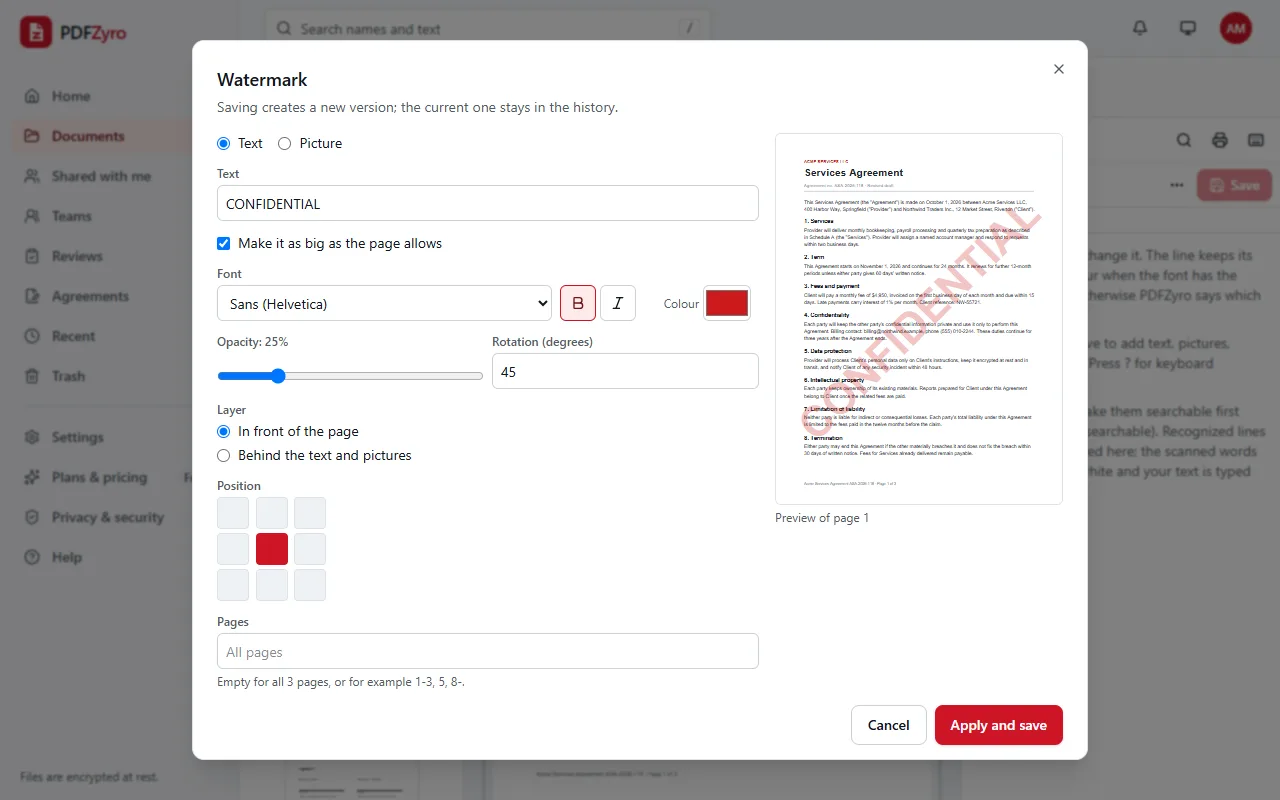
- Click Watermark on the Home page and choose the PDF from your documents, or upload it. The document opens with the Watermark settings.
- Keep Text selected and type your watermark, for example CONFIDENTIAL, DRAFT, COPY or the name of the person you're sending it to.
- Leave Make it as big as the page allows ticked for a mark across the page, or untick it and set the size in points. Choose the font, bold or italic, and the colour.
- Set the Opacity: around 15 to 30% keeps the page easy to read. Set the Rotation: 45 degrees gives the classic diagonal mark, 0 keeps it level.
- Under Layer, choose In front of the page so it can't be missed, or Behind the text and pictures so the text stays crisp. Pick a Position on the grid, such as Centre or Bottom right.
- Under Pages, leave the box empty for every page, or type the pages, for example 1-3, 5, 8-. The preview shows how a page will look.
- Click Apply and save. The watermarked PDF is saved as a new version, and the version without the watermark stays in the history. Download it or share it from your documents.
How to use your logo as a watermark
For a small logo in a corner of every page, set the rotation to 0, choose a corner on the Position grid and keep the width small, around 10 to 20% of the page.
- In the Watermark settings, choose Picture instead of Text.
- Click Choose a picture and pick a PNG or JPEG file. A PNG with a transparent background looks best on the page.
- Set the Width as a percentage of the page, then the opacity, rotation, layer and position, as for text.
- Choose the pages and click Apply and save.
Tips for a watermark that works
- Keep it short. One or two words read better across a page than a sentence.
- Keep it faint. A watermark that is too strong hides the content and makes the document hard to read and print.
- Choose the layer for the kind of page. On scanned pages, which are one picture, a watermark behind the content is hidden by the scan, so put it in front with a low opacity.
- Add a name to trace copies. A watermark such as Prepared for J. Smith discourages forwarding and shows which copy was shared.
- Watermark a copy, not your master. In PDFZyro the clean version stays in the version history, so you can always download the document without it.
- Don't rely on it for security. A watermark is a visible label, not a lock: to control who can open the file, add a password, and to take information out of it, redact it.
How to remove a watermark you added
The result is saved as a new version. This works for watermarks added with PDFZyro; ones added by other apps can't be removed this way. If you have the version from before the watermark was added, open Version history and download it, or choose Restore this version.
Removing someone else's watermark from a document you don't have the rights to can breach copyright or an agreement, so check before you do.
- Open the document and click Edit.
- Open Page design in the toolbar and choose Remove added headers, watermarks.
- PDFZyro lists what it added to this version, such as a watermark or a background. Tick what to remove and click Remove and save.
Watermark, stamp, header or background?
- Watermark: large and faint across the page, to show a status such as Draft or Confidential, or who the document belongs to.
- Stamp: a mark placed once where you want it, such as Approved or Paid, with Stamp on the Home page.
- Header or footer: small text at the top or bottom of each page, such as a title, the date or Internal use only, with Headers & footers in Page design.
- Background: a colour or picture behind the whole page, with Background in Page design.
- Bates numbers: a unique label on every page of legal documents, with Bates numbering.
Other ways to watermark a PDF
- Microsoft Word: if you have the original document, add a watermark under Design, then Watermark, and save it as a PDF. This only helps for documents you have in Word.
- Adobe Acrobat: the paid version can add, update and remove watermarks.
- The PDF readers built into computers, phones and browsers are made for reading, marking up and signing, and usually have no watermark tool.
Questions and answers
How do I add a watermark to a PDF for free?
Create a free PDFZyro account, click Watermark on the Home page, choose your PDF, type your text or choose a picture and click Apply and save. On the Free plan, adding a watermark counts as one of the daily edit, convert, compress or OCR tasks, and PDFZyro never adds a watermark of its own.
Can I watermark only some pages?
Yes. Type the pages in the Pages box, for example 2-5 or 1, 3, 7-. Leave it empty to watermark every page.
How do I make a watermark transparent?
Lower the Opacity slider in the Watermark settings. Around 15 to 30% keeps the text underneath easy to read.
Can someone remove my watermark?
Possibly. A watermark is a visible mark, not protection, and someone with a PDF editor can often remove or cover it. Use a password to control who can open the file, and redaction to remove information for good.
Will the watermark show when the PDF is printed?
Yes. It's part of the page, so it shows in every PDF reader and when the document is printed.
Can I add a watermark on my phone?
Yes. PDFZyro runs in the browser on iPhone, iPad and Android, with the same Watermark settings as on a computer.
Related guides
- How to add page numbers to a PDFHow to put page numbers in a PDF document: choose the position and format, skip the cover page, start from any number, and add headers and footers.
- How to password protect a PDFHow to password protect a PDF: the two kinds of PDF password, step-by-step instructions, how to choose a strong password, and what protection can't do.
- How to add an image to a PDFHow to add an image to a PDF: place a JPG or PNG on the page, move, resize and crop it, add a logo to every page, and other free ways to insert a picture.
Related tools
- Watermark PDFAdd a text or picture watermark to your pages.
- Edit PDFChange text and pictures, add text, links and whiteout.
- Add page numbersNumber pages and add headers and footers.
- Password protect PDFLock a PDF with a password and AES-256 encryption.
- Redact PDFRemove text and pictures for good, not just cover them.
Every PDF tool in one place
Free plan with no time limit and no watermarks. Pro is free for 7 days, no card needed.
Watermark a PDF free