How to convert JPG to PDF
To convert a JPG to PDF, open an image to PDF converter, add your pictures, put them in the order you want, choose the page size and click Convert. You get one PDF with a page for each picture, or a separate PDF for each one. Your phone and computer can also do it from the print dialog, but a converter gives you more control over the order, page size and margins.
This guide shows how to turn one photo or many into a PDF step by step, which settings to choose, how to handle iPhone photos and photos of documents, and the other ways to do it on Windows, Mac, iPhone and Android.
Updated October 15, 2026 · By the PDFZyro team
How to convert JPG to PDF in PDFZyro
- Create a free PDFZyro account and click Images to PDF on the Home page.
- Click Choose pictures, or drop them onto the page. JPG, PNG, GIF, WebP, TIFF and BMP all work, up to 50 pictures at a time.
- Put the pictures in order with the up and down arrows next to each one. The first picture becomes page 1.
- With more than one picture, choose One PDF to put them all in one document, or One PDF per picture.
- Choose the Page size (A4, Letter, Legal or Same as picture), the Orientation and the Margin.
- Type a name for the PDF if you like, then click Convert to PDF. With one PDF per picture, the button says how many PDFs it will make.
- When the PDF is ready, click Open to view it. It's saved in your documents, and the uploaded pictures are deleted.
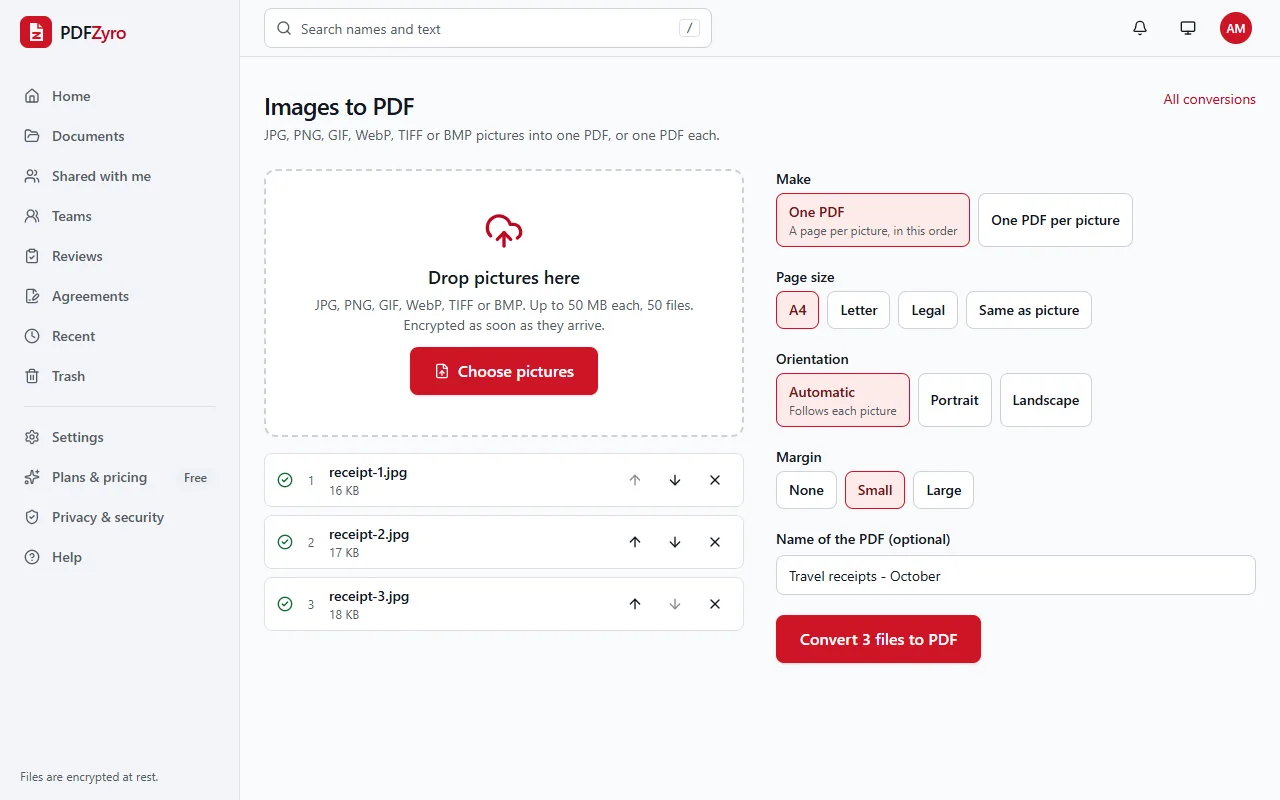
Which settings to choose
- Page size: choose A4 or Letter when the PDF will be printed or sent with other documents, so every page is the same size. Choose Same as picture for screenshots, artwork or photos you want at their own proportions, with no paper around them.
- Orientation: leave Automatic for a mix of tall and wide pictures; each page then follows its picture, so landscape photos get landscape pages. Choose Portrait or Landscape to turn every page the same way.
- Margin: None fills the page edge to edge. Small and Large leave white space around each picture, which looks tidier and stops printers cutting off the edges.
- One PDF or one each: one PDF suits a set of receipts, a document you photographed page by page or a photo report. One PDF per picture suits files that must be sent or filed separately.
Will the pictures lose quality?
Not with PDFZyro. JPG and PNG pictures are placed in the PDF as they are, without being compressed again, so the PDF looks exactly like your photos. GIF, BMP and TIFF pictures are kept without loss, WebP photos are stored as high-quality JPG, and a TIFF with several pages becomes several PDF pages.
Photos from a phone also carry hidden details, such as where they were taken. When JPG photos go into a PDF, PDFZyro removes that information, including the GPS location, and still turns each photo the right way up.
The flip side of full quality is file size: a dozen phone photos can make a PDF too big to email. If that happens, compress it afterwards and choose a quality that still reads well.
Converting iPhone photos and screenshots
iPhones usually save photos in the HEIC format, which PDFZyro can't convert yet. Export or share the photos as JPG first, or change the camera setting: open Settings, then Camera, then Formats, and choose Most Compatible so new photos are saved as JPG.
PNG screenshots convert just like JPGs. Choose Same as picture for the page size and None for the margin to get a PDF that looks exactly like the screen.
Turning photos of documents into a proper PDF
Photos of receipts, forms or book pages become a PDF of pictures: you can read them, but you can't search or copy the text. A few steps make the result much more useful:
- Take each photo straight on, in good light, with the page filling the frame. Crop the photos on your phone first if there's a lot of table or floor around the page.
- Convert them into one PDF, in the right order.
- Open the PDF with Make searchable (OCR). The text is recognized, so you can search, select and copy it.
- If a page came out sideways, rotate it in Organize pages and save.
- Compress the PDF if it's too big to send.
Other ways to convert JPG to PDF
These are handy for a picture or two. The print dialog usually gives less control over page size, margins and order, and may compress your photos, so check the result before you send it.
- Windows: select the pictures in File Explorer, right-click and choose Print (on Windows 11, choose Show more options first), then pick Microsoft Print to PDF as the printer.
- Mac: open the pictures in Preview, select them all in the sidebar, choose File, then Print, and pick Save as PDF from the PDF menu. For a single picture, File, then Export as PDF is quicker.
- iPhone and iPad: in the Files app, select the pictures, tap the More button (three dots) and choose Create PDF. To capture paper documents, the Notes app can scan them straight to PDF.
- Android: open the picture, choose Print from the menu and pick Save as PDF as the printer. The Google Drive app can also scan paper documents to PDF.
Questions and answers
How do I combine several JPGs into one PDF?
Open Images to PDF in PDFZyro, add all the pictures, put them in order with the arrows, choose One PDF and click Convert to PDF. Each picture becomes a page.
Is converting JPG to PDF free?
Yes. Create a free PDFZyro account. On the Free plan, converting counts as one of the daily edit, convert, compress or OCR tasks, and no watermark is added. Pro removes the daily limit.
Will my photos lose quality when converted to PDF?
No. JPG and PNG pictures are placed in the PDF without being compressed again. If the PDF is too large to send, compress it afterwards.
Can I convert HEIC photos from an iPhone?
Not yet. Export or share them as JPG first, or set the iPhone camera to Most Compatible (Settings, then Camera, then Formats) so new photos are saved as JPG.
Can I make the text in my photos searchable?
Yes. After converting, open the PDF with Make searchable (OCR). The text is recognized, so you can search, select and copy it.
How do I add a picture to a PDF I already have?
To add it as a new page, convert the picture to PDF, then insert it with Organize pages or merge the two files. To place a picture on an existing page, such as a logo, use Add picture in Edit PDF instead.
Terms in this guide: Rasterizing a PDF
Related guides
- How to convert PDF to JPGHow to convert a PDF to JPG: save each page as a picture, choose JPG, PNG or TIFF and the right resolution, get just one page, and other ways to do it.
- How to make a scanned PDF searchableHow to make a scanned PDF searchable with OCR: why scans can't be searched, step-by-step instructions, tips for accurate text recognition, and other ways.
- How to reduce PDF size for emailHow to reduce a PDF's size for email: attachment limits, how to compress step by step, which quality to pick, and what to do when a PDF is still too big.
- How to add an image to a PDFHow to add an image to a PDF: place a JPG or PNG on the page, move, resize and crop it, add a logo to every page, and other free ways to insert a picture.
Related tools
Every PDF tool in one place
Free plan with no time limit and no watermarks. Pro is free for 7 days, no card needed.
Convert JPG to PDF free