How to convert a PDF to JPG
To convert a PDF to JPG, open a PDF to image converter, choose JPG and a resolution, pick the pages you want and convert. Each page becomes its own JPG picture, ready to put in a presentation, a social post, a website or a message. When you convert several pages at once, the pictures usually come together in one zip file.
This guide shows how to convert a PDF to JPG step by step, whether to choose JPG, PNG or TIFF, which resolution to use, how to get just one page or part of a page, and the other ways to do it on Windows and Mac.
Updated October 14, 2026 · By the PDFZyro team
How to convert a PDF to JPG in PDFZyro
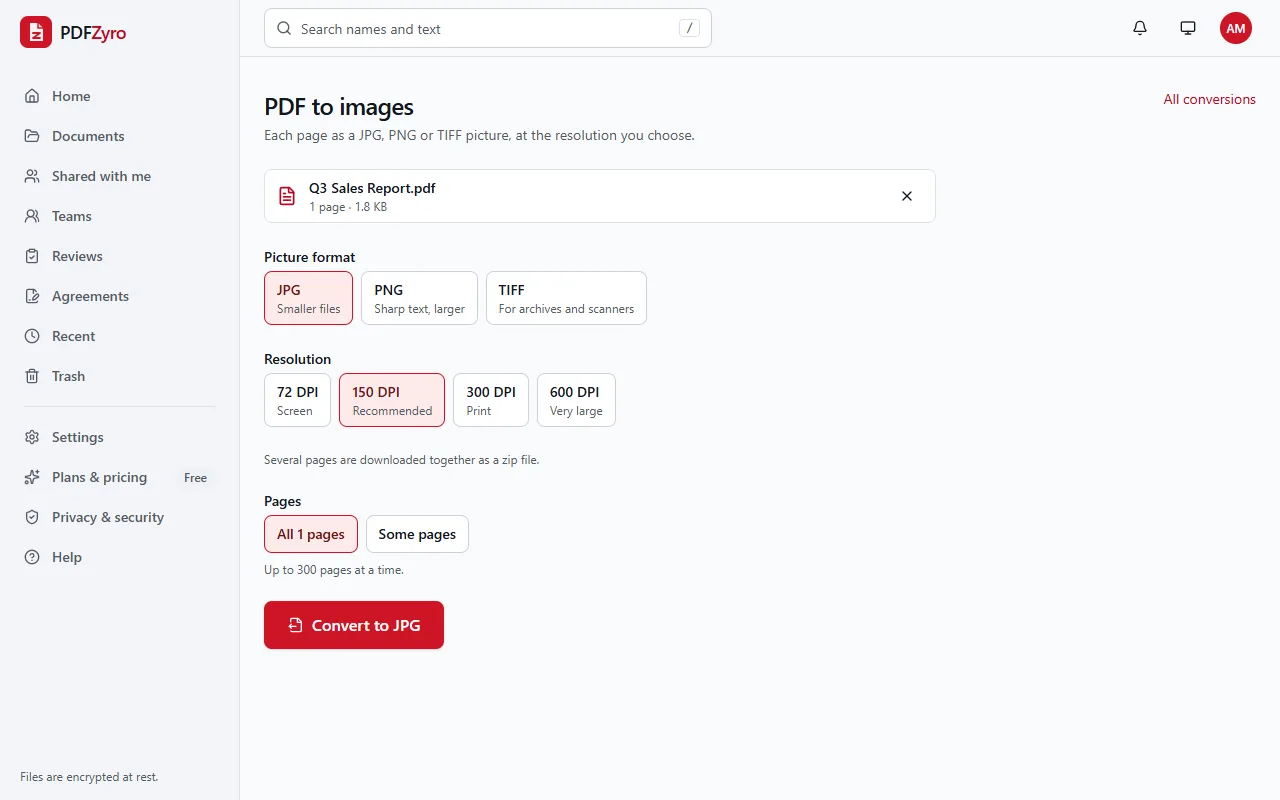
- Open PDF to images on the Home page, or choose Convert to images… from the Tools menu of an open document.
- Choose the PDF from your documents, or upload it.
- Under Picture format, choose JPG.
- Choose the Resolution: 72 DPI for screens, 150 DPI (recommended), 300 DPI for printing, or 600 DPI for very large pictures.
- Choose All pages, or Some pages and type which ones, for example 1-3, 5, 8-. You can convert up to 300 pages at a time.
- Click Convert to JPG. When the pictures are ready, the download starts by itself. One page gives a single JPG; several pages come together in a zip file, each picture named after the document and its page number.
- If the download didn't start, use the Download button. It stays available for 24 hours, and the PDF itself isn't changed.
JPG, PNG or TIFF?
- JPG: the smallest files and the format every app and website accepts. Best for pages with photos, and for sending pages in messages.
- PNG: sharper text and line drawings, with no blurry edges around letters, but larger files. Best for pages that are mostly text, diagrams or charts.
- TIFF: for archives, scanners and fax-style workflows. Choose One multi-page TIFF to get the whole document in one file, or One TIFF per page in a zip.
Which resolution to choose
Resolution (DPI, dots per inch) sets how many pixels each inch of the page gets. A US Letter page at 150 DPI becomes a picture of 1,275 by 1,650 pixels; at 300 DPI it's 2,550 by 3,300 pixels, four times as many, with a much larger file.
- 72 DPI: quick previews and thumbnails. Small text is hard to read.
- 150 DPI: right for most uses, such as slides, websites, emails and messages.
- 300 DPI: for printing, or for zooming in on small print and detailed drawings.
- 600 DPI: very large pictures, for posters or detailed technical pages. Very large pages are made at a lower resolution to stay within the size limit, and the result says so.
Getting just one page, or part of a page
For a single page, choose Some pages and type its number. You get one JPG instead of a zip file.
PDFZyro turns whole pages into pictures. To get only a chart, a photo or a signature from a page, convert that page at 300 DPI and crop the picture in the photo app on your computer or phone. The higher resolution keeps the cropped part sharp.
Other ways to convert a PDF to JPG
- Preview on a Mac: open the PDF, select the page in the thumbnails, choose File, then Export, pick JPEG as the format, set the quality and save. It saves one page at a time.
- Adobe Acrobat: the paid version can export a PDF as JPEG pictures, one per page. The free Acrobat Reader can't.
- A screenshot: on Windows, press Windows + Shift + S to capture part of the screen; on a Mac, press Shift + Command + 4. The picture is only as sharp as your screen, so zoom in on the page first.
- GIMP: this free image editor can open the pages of a PDF at a resolution you choose and export them as JPG.
Turning pictures back into a PDF
Going the other way is just as quick. Open Images to PDF on the Home page, add your JPG, PNG, GIF, WebP, TIFF or BMP pictures, and choose the page size, the orientation and the margin. You can put every picture into one PDF or make one PDF each, and the new PDFs are added to your documents.
Keep the original PDF as well. A JPG is a picture of the page, so its text can't be searched, selected or edited. If you need the words rather than a picture, convert the PDF to Word instead.
Questions and answers
How do I convert a PDF to JPG?
Open PDF to images in PDFZyro, choose the PDF, pick JPG and a resolution, and click Convert to JPG. Each page is saved as a JPG, and several pages download together in a zip file.
Is converting a PDF to JPG free?
Yes. On the Free plan, each conversion counts as one of the daily edit, convert, compress or OCR tasks, and no watermark is added to your pictures. Pro removes the daily limit.
How do I convert only one page of a PDF to JPG?
Choose Some pages and type the page number, for example 4. You get a single JPG instead of a zip file.
Why did I get a zip file?
When you convert more than one page, the pictures are packed into one zip file so they download together. Open it to find one JPG for each page, named with its page number.
Will the JPG look exactly like the PDF page?
Yes. The page is drawn as a picture, with its text, pictures and colours. At 72 DPI small text can look soft, so choose 150 or 300 DPI for pages with fine print.
Can I convert a PDF to JPG on my phone?
Yes. PDFZyro works in the browser on iPhone, iPad and Android: open PDF to images, choose JPG and tap Convert to JPG.
Related guides
- How to extract pages from a PDFHow to extract pages from a PDF into one new file: pick pages by number or by sight, in any order, from any version, and when to split or delete instead.
- How to reduce PDF size for emailHow to reduce a PDF's size for email: attachment limits, how to compress step by step, which quality to pick, and what to do when a PDF is still too big.
- How to convert PDF to WordHow to convert a PDF to an editable Word document: step by step, choosing pages, what converts well, tips for a clean result, and other ways to do it.
Related tools
Every PDF tool in one place
Free plan with no time limit and no watermarks. Pro is free for 7 days, no card needed.
Convert PDF to JPG free