Extract pages from a PDF into a new document
Need only the signature page, one chapter or a handful of pages from different parts of a long PDF? Type the pages you want, or pick them by sight, and PDFZyro copies them into one new document while the original stays complete.
Free plan with no time limit. Pro free for 7 days, no card needed.
How to extract pages from a PDF
Choose the PDF
Open Extract pages and pick a document from your library, or upload one. If the document is already open, choose Extract pages from its Tools menu.
Type the pages you want
Enter pages and ranges separated by commas, for example 1-3, 5, 8- (8- means page 8 to the end), and give the new document a name if you like.
Open the new PDF
The pages are copied into a new document in the same folder, ready to open, share or download. The original keeps all its pages.
Want the details? Read our guide: How to extract pages from a PDF
Extracting pages, your way
Any pages, in the order you type
The new document follows the order you enter, so 5, 1-3 puts page 5 first. A page you list twice is only copied once.
One file, not many
Split makes a separate document for each part. Extract gathers every page you choose, even from far apart, into a single PDF.
Pick pages by sight
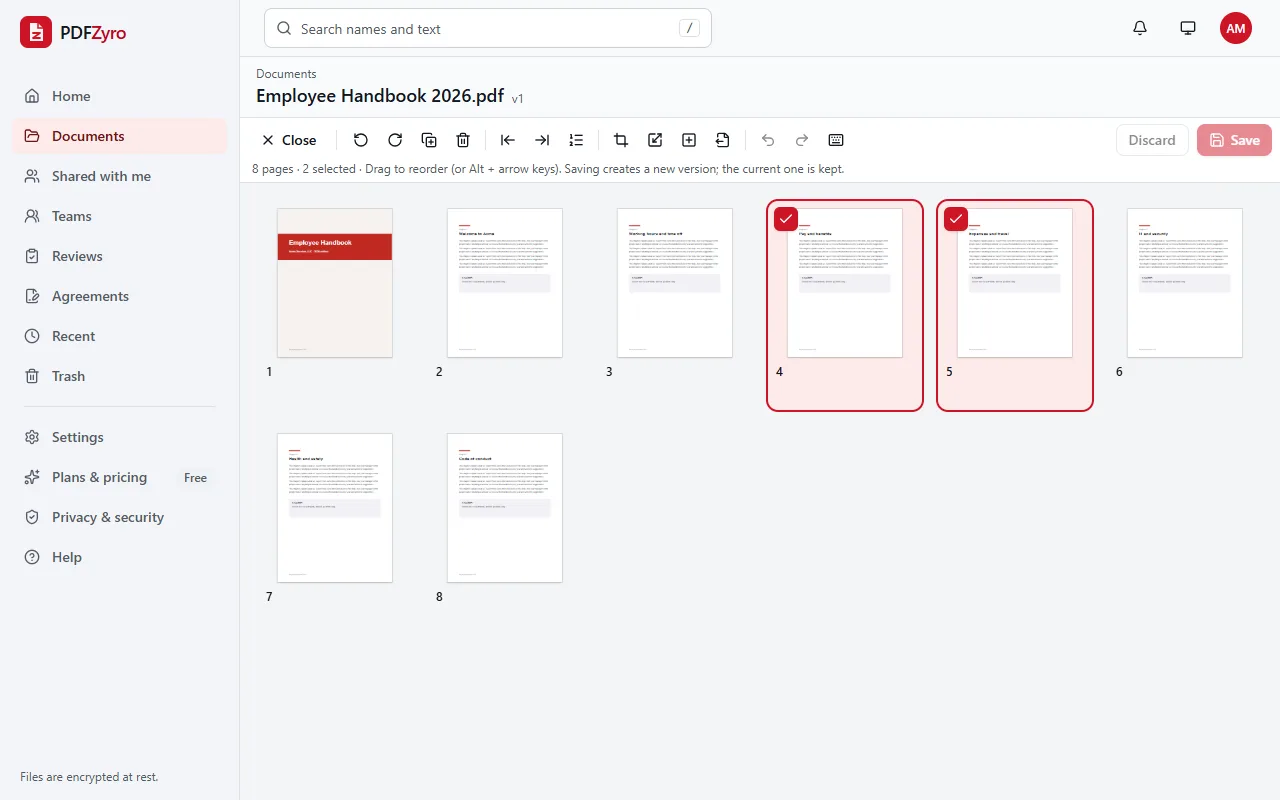
In Organize pages, select the page thumbnails you want and choose Extract selected pages to a new document. The page numbers are filled in for you.
Same quality as the original
Pages are copied as they are: text stays sharp and selectable, and bookmarks that point to the pages you keep come along.
From any version
Extract works on the version you're looking at, so you can copy pages out of an earlier version in the document's history.
Private by design
Encrypted and private
Every file is encrypted before it's stored, and only you and the people you share with can open it.
Your original stays safe
Every change is saved as a new version. The original is never changed, and you can restore it at any time.
No watermarks
Files you save never get a watermark, on any plan, including the free one.
Works in your browser
Nothing to install. Use it on Windows, Mac, Linux, Chromebooks, iPhone, iPad and Android.
Questions and answers
How do I extract pages from a PDF?
Open Extract pages in PDFZyro, choose the PDF, type the pages you want (for example 2, 4-6) and click Extract. The pages are saved as a new PDF in the same folder, and the original stays as it is.
What's the difference between extracting and splitting a PDF?
Splitting divides a document into several new files, by page ranges, every few pages, file size or bookmarks. Extracting makes one new file that contains only the pages you choose.
Does extracting pages remove them from the original?
No. Extracting copies the pages. To remove pages from the document itself, open it in Organize pages, delete them and save; the earlier version stays in the history.
Can I extract pages as JPG pictures?
Extract the pages you need into a new PDF first, then convert that document with PDF to JPG. Each page becomes its own JPG, PNG or TIFF picture.
Is Extract PDF pages free?
Yes. Extract PDF pages isn't counted towards the Free plan's daily tasks, so you can use it as much as you like with files up to 50 MB. Pro adds unlimited edit, convert, compress and OCR tasks and more storage, and is free to try for 7 days.
Related tools
- Split PDFSplit a PDF by page ranges, every few pages, size or bookmarks.
- Organize PDFReorder, delete, insert, rotate and resize pages.
- Merge PDFCombine several PDFs into one, in the order you choose.
- PDF to JPGSave each page of a PDF as a JPG, PNG or TIFF picture.
Switching from another app? Adobe Acrobat alternative · Foxit PDF Editor alternative · Smallpdf alternative · iLovePDF alternative
Send the pages that matter, not the whole file
Create a free account in under a minute. No card needed, and no watermarks on anything you save.
Extract pages free