How to extract pages from a PDF into a new file
To extract pages from a PDF, open a tool that can copy pages into a new document, type or select the pages you want and save them as a new PDF. The original keeps every page, and the new file contains only what you chose: a signature page, one chapter, or a few pages from different parts of a long document.
This guide explains when to extract rather than split or delete, how to extract pages step by step, how to pick pages by sight and put them in your own order, and the other ways to do it.
Updated October 16, 2026 · By the PDFZyro team
Extract, split or delete: which do you need?
- Extract pages when you want one new PDF with some of the pages, for example the signed page of a contract or three exhibits out of fifty. The original stays complete.
- Split a PDF when you want several new files: one per page range, one every few pages, parts under a file size, or one per bookmark.
- Delete pages when the document itself should lose them, for example the blank backs of a double-sided scan. That changes the document, as a new version, instead of making a copy.
How to extract pages from a PDF in PDFZyro
- Open Extract pages on the Home page and choose the PDF from your documents, or upload it. If the document is already open, choose Extract pages… from its Tools menu.
- In Pages, type the pages you want, separated by commas: single pages and ranges, for example 1-3, 5, 8-. A range with no end, such as 8-, means page 8 to the end. The dialog shows how many pages the document has.
- Type a name for the new document if you like. If you leave it empty, it's named after the original with the pages in brackets, for example Contract (pages 1-3).
- Click Extract. The pages are copied in the background and saved as a new document in the same folder as the original.
- Click Open it to read, download or share the new PDF. The original document hasn't changed.
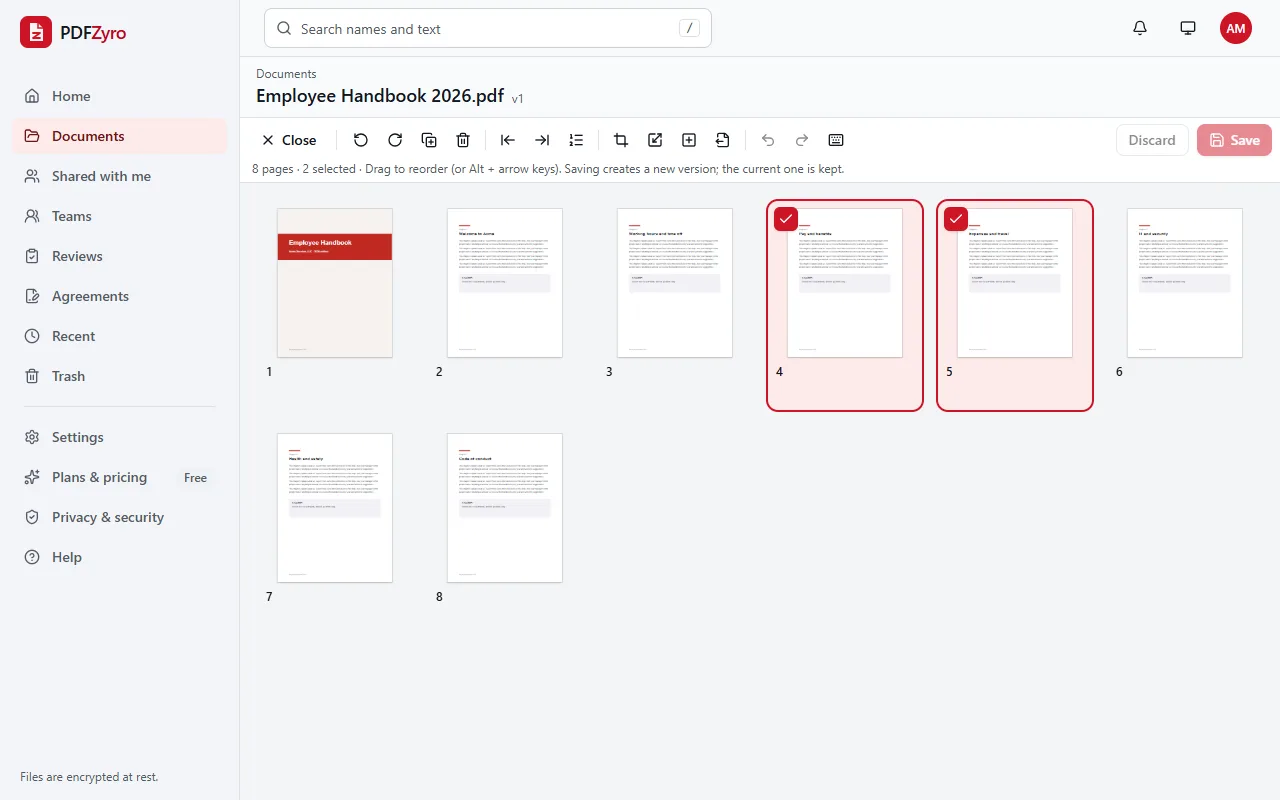
Picking pages by sight instead of by number
- Open the PDF with Organize pages to see every page as a thumbnail.
- Select the pages you want: click one, Shift-click to select a run of pages, or Ctrl-click (⌘-click on a Mac) to add pages from anywhere in the document.
- Click Extract selected pages to a new document… in the toolbar. The page numbers are filled in for you; add a name and click Extract.
- If the button is greyed out, save or discard the changes you've made in Organize pages first: Extract copies pages from the saved document.
Choosing the order of the extracted pages
The new document follows the order you type, not the order of the original. Typing 7, 1-3 gives a PDF that starts with page 7, followed by pages 1, 2 and 3. A page you list twice is copied only once.
That makes Extract a quick way to build a short pack from a long document, such as the cover page, the signature page and one schedule, in the order your reader needs them. For finer changes, open the new document in Organize pages to drag pages around, rotate them or add blank pages.
Extracting pages from an earlier version
In PDFZyro, every edit is saved as a new version, and Extract works on the version you're looking at. To copy pages out of an older version, for example a page you deleted last week, open that version from the document's version history, then choose Extract pages… from the Tools menu. The pages are copied into a new document, and the history isn't changed.
What comes with the extracted pages
- The pages themselves, unchanged: text stays sharp and selectable, and pictures keep their quality.
- Bookmarks that point to the pages you extracted. Bookmarks to pages you left out are removed.
- The original's document properties, such as its title and author. If you're sending the pages outside your organization, remove hidden data from the new document first.
- Nothing else: the pages you didn't choose aren't hidden in the new file, they're left out completely.
Other ways to extract pages from a PDF
- Print to PDF: in the print dialog, choose Microsoft Print to PDF on Windows or Save as PDF on a Mac, enter the pages you want and save. It works for a simple range, but links, form fields and bookmarks may be lost.
- Preview on a Mac: show the thumbnails (View, then Thumbnails), select the pages you want, choose File, then Print, pick Selected Pages in Sidebar and save as PDF.
- Adobe Acrobat: the paid version's Organize Pages tool has an Extract option. The free Acrobat Reader can't extract pages.
Tips for extracting pages
- A password-protected PDF has to be unlocked first. If you know the password, use Remove password, then extract from the unlocked version.
- Pages extracted from a digitally signed PDF don't carry a valid signature. Keep the signed original as your record and share the extract as a copy.
- To send the pages as pictures, convert the new PDF with PDF to JPG.
- If the pages contain details the reader shouldn't see, redact them in the new document before you send it.
Questions and answers
How do I extract one page from a PDF?
Open Extract pages in PDFZyro, choose the PDF and type the page number, for example 4. That page is saved as a new PDF, and the original keeps all its pages.
How do I extract pages that aren't next to each other?
Separate them with commas, for example 2, 7, 15-18. They're copied into one new PDF, in the order you type them.
Does extracting pages change the original PDF?
No. Extracting copies the pages into a new document; the original keeps every page and its version history.
Is extracting pages from a PDF free?
Yes. Extracting pages isn't counted towards the Free plan's daily tasks, so you can extract as often as you need, with files up to the Free plan's size limit. No watermark is added.
How do I save every page as a separate PDF?
Use Split instead of Extract and choose to split every 1 page. Each page becomes its own PDF in the same folder.
Can I extract pages on my phone?
Yes. PDFZyro works in the browser on iPhone, iPad and Android: open Extract pages, choose the PDF, type the pages and tap Extract.
Related guides
- How to split PDF pagesHow to split PDF pages into separate files: by page ranges, every few pages, file size or bookmarks, or extract just the pages you need. Step by step.
- How to delete pages from a PDFHow to delete pages from a PDF: remove one page or many, clear blank pages from scans, get a deleted page back, and other ways on a Mac or with Acrobat.
- How to convert PDF to JPGHow to convert a PDF to JPG: save each page as a picture, choose JPG, PNG or TIFF and the right resolution, get just one page, and other ways to do it.
- How to merge PDF filesHow to merge PDF files into one: combine PDFs in the order you choose, add pictures and Word files, tidy the result, and other ways on Mac and Windows.
Related tools
- Extract PDF pagesCopy the pages you choose into one new PDF.
- Split PDFSplit a PDF by page ranges, every few pages, size or bookmarks.
- Organize PDFReorder, delete, insert, rotate and resize pages.
- PDF to JPGSave each page of a PDF as a JPG, PNG or TIFF picture.
- Redact PDFRemove text and pictures for good, not just cover them.
Every PDF tool in one place
Free plan with no time limit and no watermarks. Pro is free for 7 days, no card needed.
Extract pages free