Organize PDF pages: reorder, delete and add pages
See every page of your PDF as a thumbnail and put the document in shape: drag pages into order, remove the ones you don't need, add blank pages or pages from another PDF, and turn, crop or resize pages. Nothing changes until you save.
Free plan with no time limit. Pro free for 7 days, no card needed.
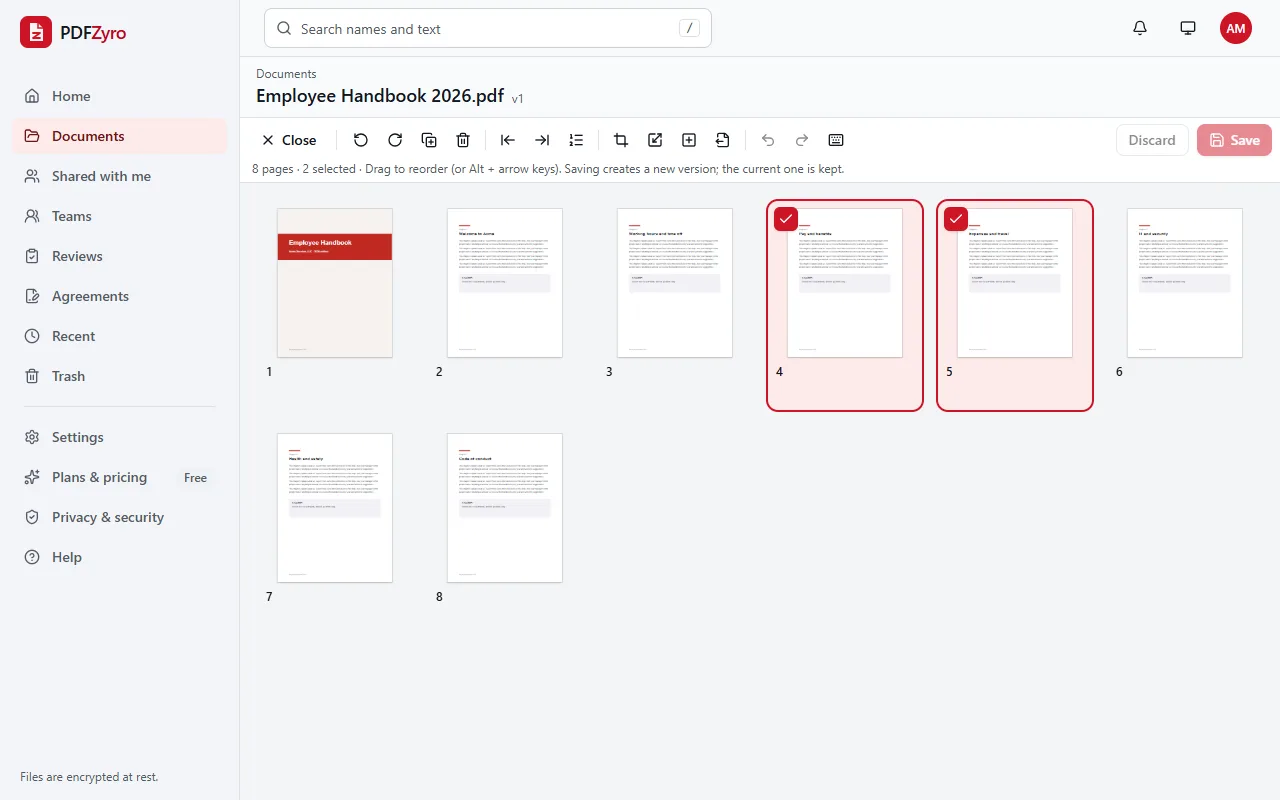
How to organize the pages of a PDF
Open the PDF
Open Organize pages and choose a document from your library, or upload one. If the document is already open, click Organize pages.
Arrange the pages
Drag pages into a new order, select pages to rotate, duplicate or delete them, and use Insert pages to add a blank page or pages from another PDF.
Save
Click Save. All your changes are applied together as one new version; the earlier version stays in the document's history.
Want the details? Read our guide: How to add pages to a PDF · Read our guide: How to delete pages from a PDF
Everything you can do with pages
Reorder by drag and drop
Drag one page or a whole selection to its new place, or use Move to position… to type where the pages go, which is handy in long documents.
Delete and duplicate
Remove blank, repeated or unwanted pages, or duplicate a page you need twice, such as a form to fill in for a second person.
Insert pages
Add a blank page after the selected page, or insert some or all of the pages of another PDF at the start, the end or after the selected page.
Rotate, crop and resize
Turn sideways pages, trim margins, and give pages a new paper size such as A4 or Letter, with their content scaled to fit.
Undo, redo and shortcuts
Changes are staged until you save, with Undo and Redo. Everything works from the keyboard too: arrows to move, Space to select, Alt and an arrow key to move pages.
On phones and tablets
Tap the box in a page's corner to select it, and press and hold a page to drag it to a new place.
Private by design
Encrypted and private
Every file is encrypted before it's stored, and only you and the people you share with can open it.
Your original stays safe
Every change is saved as a new version. The original is never changed, and you can restore it at any time.
No watermarks
Files you save never get a watermark, on any plan, including the free one.
Works in your browser
Nothing to install. Use it on Windows, Mac, Linux, Chromebooks, iPhone, iPad and Android.
Questions and answers
How do I rearrange pages in a PDF?
Open the PDF with Organize pages in PDFZyro and drag the pages into the order you want, or select pages and press Alt with the left or right arrow key. Click Save to keep the new order as a new version.
How do I delete pages from a PDF?
In Organize pages, select the pages to remove and click Delete, or press the Delete key, then click Save. Bookmarks that pointed to the deleted pages are removed too.
Can I move pages from one PDF to another?
Yes. Open the document that should receive the pages, choose Insert pages, then Pages from another PDF…, pick the other document and type the pages to copy. The other PDF isn't changed.
Can I get a deleted page back?
Before you save, click Undo. After saving, the earlier version with every page is still in the document's history, where you can restore it as a new version or copy pages out of it with Extract pages.
Is Organize PDF free?
Yes. Organize PDF isn't counted towards the Free plan's daily tasks, so you can use it as much as you like with files up to 50 MB. Pro adds unlimited edit, convert, compress and OCR tasks and more storage, and is free to try for 7 days.
Related tools
- Rotate PDFTurn sideways or upside-down pages and save them that way.
- Extract PDF pagesCopy the pages you choose into one new PDF.
- Merge PDFCombine several PDFs into one, in the order you choose.
- Add page numbersNumber pages and add headers and footers.
Switching from another app? Adobe Acrobat alternative · Foxit PDF Editor alternative · Smallpdf alternative · iLovePDF alternative
Put every page where it belongs
Create a free account in under a minute. No card needed, and no watermarks on anything you save.
Organize a PDF free