How to convert a PDF to Word
To convert a PDF to Word, open it in a PDF to Word converter, choose the pages you want and convert: you get a .docx file with the PDF's paragraphs, headings, lists, tables and pictures that you can edit in Microsoft Word, Google Docs, LibreOffice or Pages. For a normal PDF made on a computer, it takes a few seconds.
This guide covers PDFs that already contain text, such as reports, contracts, CVs and documents exported from another program. If your PDF is a scan or a photo of paper, read our guide to converting a scanned PDF to Word instead, which adds text recognition (OCR).
Updated October 15, 2026 · By the PDFZyro team
First, check what kind of PDF you have
Try to select a single word in the PDF. If you can highlight words and copy them, the PDF has real text and converts directly, which is quick and exact. If the whole page is selected as one picture, or nothing is selected at all, the PDF is a scan: it has no text until OCR reads it.
Also check whether the PDF asks for a password. A password-protected PDF can't be converted until the password is removed. If it's your document and you know the password, remove it first (our guide to removing a password from a PDF shows how), then convert the unlocked copy.
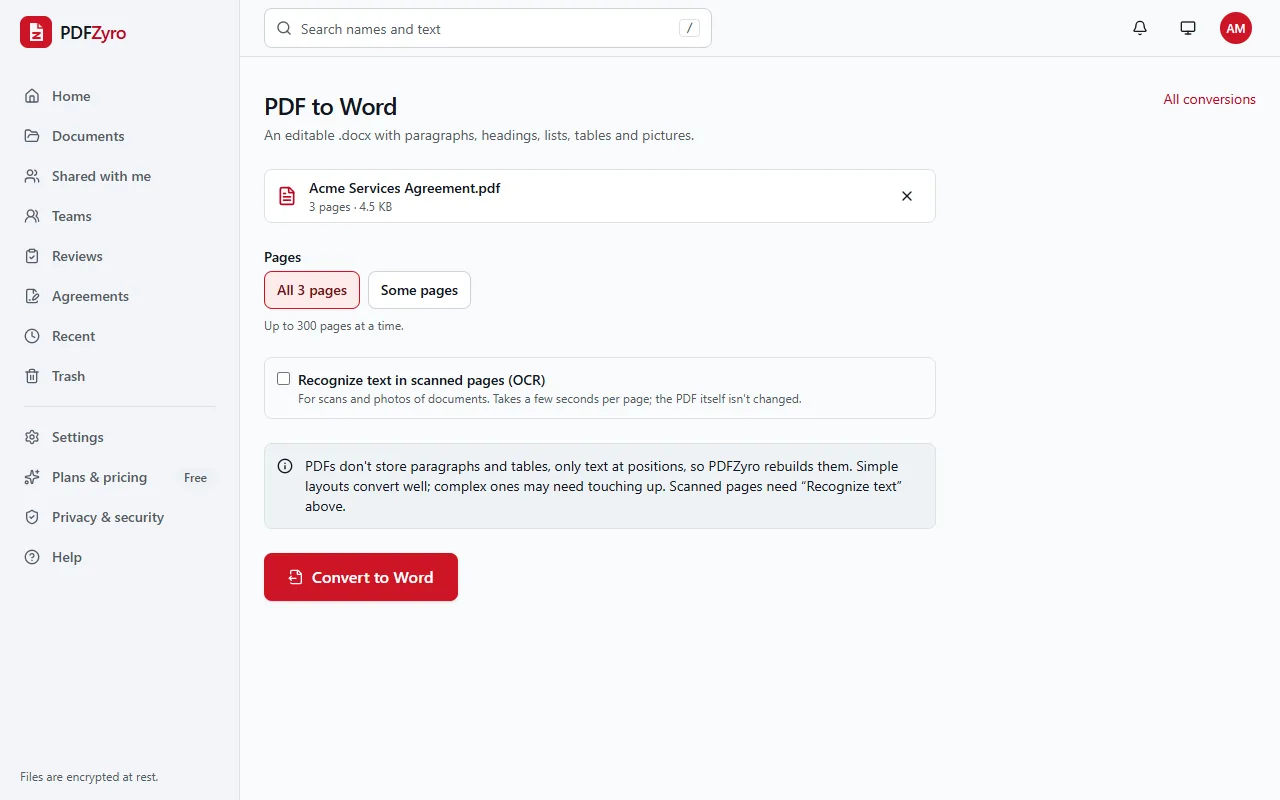
How to convert a PDF to Word in PDFZyro
Your PDF isn't changed: the Word file is a new file, and the PDF stays in your documents as it was. Click Convert again to make another Word file, for example from different pages, or Open the PDF to go back to the document.
- Create a free PDFZyro account, or sign in, and click PDF to Word on the Home page.
- Choose the PDF from your documents, or upload it with Choose a PDF.
- Under Pages, keep All pages, or choose Some pages and type the ones you want, for example 1-3, 5, 8-.
- Leave Recognize text in scanned pages (OCR) unticked for a normal PDF: its text is read directly.
- Click Convert to Word. The conversion runs in the background and shows its progress, and you can stop it if you picked the wrong file.
- When it's ready, the download starts by itself; if it doesn't, click the Download button. The Word file stays available to download for a limited time, and any notes under it point out pages worth checking.
- Open the .docx in Word, Google Docs, LibreOffice or Pages and make your changes.
What converts, and what to check
- Paragraphs and headings become real Word paragraphs with heading styles, not a picture of the page, so you can restyle the whole document at once.
- Bold, italic, text size and colour come through. Fonts are set by name, so Word uses the same font when it's installed on your computer, or a similar one when it isn't.
- Bulleted and numbered lists become Word lists, and tables become Word tables you can add rows and columns to.
- Pictures stay in the text where they were on the page.
- Each PDF page starts on a new page in Word, so the page breaks match the PDF.
- Columns, text boxes, forms and designed layouts may need touching up. A PDF stores text at positions on the page, not paragraphs and tables, so the converter has to rebuild them, and simple layouts convert best.
Tips for a cleaner Word document
- Convert only the pages you need. A short range is quicker and gives a tidier document to work with.
- Start from the best copy you have. A PDF exported from Word or another program converts better than one that was printed and scanned.
- If text comes out as pictures or is missing, those pages are scanned: convert again with Recognize text in scanned pages (OCR) ticked.
- Fix styles, not single lines. Changing the Normal and Heading styles in Word updates the whole document in one go.
- Check numbers, dates and names in tables before you reuse them in another document.
- Need to change only a word or two? Edit the PDF directly with Edit PDF instead and keep the original layout. Converting is best when you need to rewrite paragraphs.
Edit in Word, then turn it back into a PDF
Many people convert a PDF to Word only to make changes, then send a PDF again. When you've finished editing, save the document as a PDF from your word processor, or upload the .docx to PDFZyro and use Office to PDF, which adds the new PDF to your documents.
Before you send it, compare the new PDF with the original using Compare in PDFZyro. It highlights every word that was added, removed or changed, so you can confirm that only the changes you meant to make are in the final file.
Other ways to convert a PDF to Word
- Microsoft Word: choose File, then Open, and pick the PDF. Word converts a copy into an editable document. Pages with many pictures or columns may shift.
- Google Docs: upload the PDF to Google Drive, right-click it and choose Open with, then Google Docs. Then choose File, Download, Microsoft Word (.docx). The text comes through, but pictures and layout are often lost.
- Adobe Acrobat: the paid version can export a PDF to Word.
- Copy and paste: for a paragraph or two, selecting the text in a PDF reader and pasting it into Word is often quickest, although most of the formatting is lost.
Questions and answers
How do I convert a PDF to Word for free?
Create a free PDFZyro account, click PDF to Word on the Home page, choose your PDF and click Convert to Word. On the Free plan, each conversion counts as one of the daily edit, convert, compress or OCR tasks, and no watermark is added to the Word file.
Can I convert a PDF to Word without losing formatting?
Mostly. Paragraphs, headings, lists, tables, pictures, bold, italic, sizes and colours come through. Word lays out pages differently from PDF, so complex layouts such as columns or text boxes may need small fixes.
Why can't I convert my PDF?
The most common reason is a password: a protected PDF can't be converted until its password is removed. If it's your file and you know the password, remove it with Remove password, then convert. A scanned PDF converts, but needs Recognize text in scanned pages (OCR) to give you editable text.
Can I convert just one page of a PDF to Word?
Yes. Choose Some pages and type the page number, or a range such as 3-5.
Can I convert a PDF to Word on my phone?
Yes. PDFZyro works in the browser on iPhone, iPad and Android. The Word file downloads like any other file and opens in a word processor app on your phone.
Is my document kept private?
Your PDF is stored encrypted and is private to your account, and the Word file is kept only for a limited time for you to download.
Related guides
- How to convert a scanned PDF to WordHow to convert a scanned PDF to an editable Word document with OCR: step-by-step instructions, tips for accurate text, what to expect, and other ways.
- How to remove a password from a PDFHow to remove a password from a PDF when you know it: unlock your own file step by step, lift print and copy limits, and what to do if it's lost.
- How to edit a PDFHow to edit a PDF: change existing text, add text, pictures and links, white out content, edit pages and scans, and other ways to edit, step by step.
- How to convert PDF to ExcelHow to convert a PDF to Excel: turn tables into rows and columns, choose the sheet layout, convert scanned bank statements, and check numbers and totals.
Related tools
Every PDF tool in one place
Free plan with no time limit and no watermarks. Pro is free for 7 days, no card needed.
Convert PDF to Word free