How to create a fillable PDF form
To create a fillable PDF form, open the PDF in a form editor, add a field over each blank (a text box for each answer, checkboxes for options and a signature field where people sign), give the fields clear names, test the form and save it. You can start from any PDF, such as one exported from Word or a form you used to print, and a good editor finds the blanks and adds the fields for you.
This guide shows how to make a fillable form step by step, which kind of field to use where, how to check answers and add totals, how to collect the answers, and the other ways to create a form.
Updated October 15, 2026 · By the PDFZyro team
Start with a clear flat PDF
Design the form in Word, Google Docs or any app you like, with clear labels and room after each one: a line for a name, a box for an address, small squares for options. Then save or export it as a PDF. Blank lines and boxes are what field detection looks for, and they show people where to type.
Only have a paper form? Scan it to PDF and make it searchable with OCR first, so the labels can be read. A PDF made from a document still gives better results than a scan, because its lines and boxes are real shapes rather than part of a picture.
How to create a fillable form in PDFZyro
- Create a free PDFZyro account, click Prepare form on the Home page and choose the PDF from your documents, or upload it. If the document is already open, choose Prepare form… from its Tools menu.
- Click Detect fields. PDFZyro finds blank lines, boxes, dates and signature lines and turns them into fields, each named after the label next to it. Check what it added and delete any you don't need.
- Add any missing fields: choose Text, Checkbox, Radio, Dropdown, List box, Date, Signature or Calculated, then click the page where the field goes, or drag it there. Drag a field to move it, and drag its corner to resize it.
- Click a field to set its name, a tooltip that tells people what to enter, and whether it's Required or Read-only.
- Tidy the layout: Shift-click several fields to align their edges, spread them out evenly or make them the same size. Ctrl+D duplicates the selected field.
- Click Test to try the form in Fill & Sign, with its checks, totals and Tab order. Nothing you type while testing is saved.
- Click Save form. The fillable form is saved as a new version, and the flat original stays in the version history.
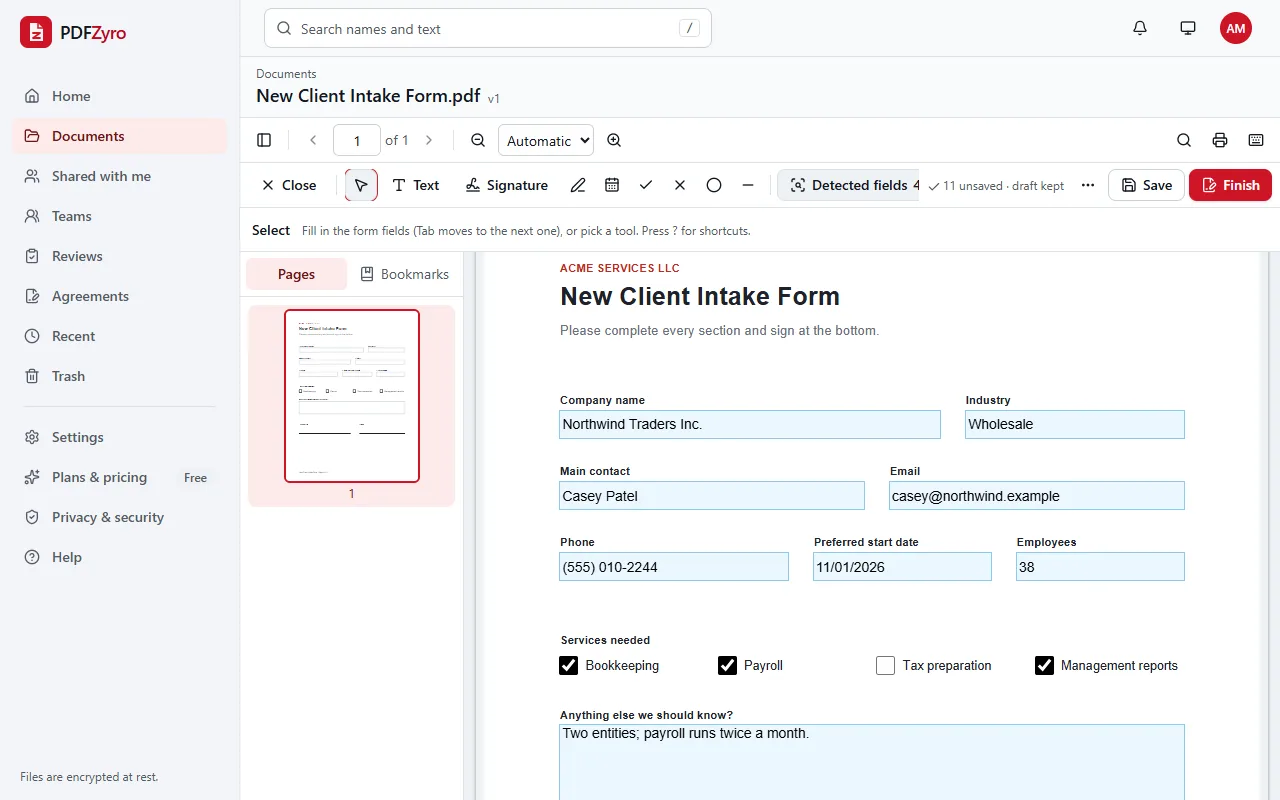
Which field to use where
- Text: names, addresses and other answers. Tick Several lines for longer answers, set a Character limit, or choose One character per box for codes printed in separate boxes.
- Checkbox: yes-or-no options, where people can tick as many as apply.
- Radio buttons: one choice from a small set, such as Yes or No. Each button in the group has its own value.
- Dropdown and List box: one choice from a longer list, such as a country or a department. Type the choices one per line.
- Date: a date in the format you choose, such as dd/mm/yyyy or mm/dd/yyyy.
- Signature: marks where someone signs. PDFZyro's Fill & Sign shows it as a place to sign, and when you send the form for signature, Auto-place finds it.
- Calculated: works out a value from other fields, such as a Sum, Product, Average, Minimum or Maximum, or your own expression. Calculated fields are read-only, so nobody can overwrite the total.
Checking answers and setting the Tab order
A form is more useful when its answers arrive complete and in the right format. Select a text field and, under What it accepts, choose what can be typed:
- Number or Whole number, with an optional minimum and maximum, for amounts and quantities.
- Email address, Phone number or US ZIP code for contact details.
- Any text, with At least this many characters for answers that mustn't be too short.
- Tick Required for fields that must be filled in. When someone fills in the form in PDFZyro and clicks Finish, any required fields still empty are listed.
- Add a Default value for the answer most people give; they can still change it.
- In All fields, choose the Tab order (Across rows, Down columns or By hand) so people move through the form sensibly when they press Tab.
Collecting the answers
Share the fillable form by email or with a link, or send it for signature so each person fills it in and signs it, with an audit trail. The fields are standard PDF form fields, so people can fill them in with Adobe Acrobat Reader, the PDF viewer in their browser or Preview on a Mac, as well as in PDFZyro. Checks and totals rely on the reader running them: Acrobat Reader and PDFZyro do, but some simpler viewers don't, so test in the reader your recipients are likely to use.
When the filled copies come back, add them to your documents, open the form and choose Export form data… from the more actions menu. Choose CSV for a spreadsheet, or JSON, and pick the filled copies to include. You get one row per document. Signature fields are left out.
Editing a form that already has fields
Prepare form also opens PDFs that already have fields, made in Acrobat or another app. You can move, rename and change those fields, add new ones and delete old ones, and settings PDFZyro doesn't show, such as colours, are kept.
Two kinds of PDF can't be prepared. A password-protected PDF needs unlocking first, with its password. A form made with Adobe LiveCycle or Designer (an XFA form) isn't supported: recreate it from a flat copy of the document, for example one printed to PDF.
Other ways to create a fillable PDF form
- Adobe Acrobat: the paid version's Prepare a form tool detects fields and lets you add more. The free Acrobat Reader can fill in forms but not create them.
- LibreOffice Writer: free. Design the form with form controls, then export it as a PDF with the option to create a PDF form ticked.
- Microsoft Word: Word's own form controls don't become PDF fields when you save as PDF, so design the layout in Word, save it as a PDF, then add the fields in a PDF form editor.
- Preview on a Mac: it can fill in forms, but it can't add fields to them.
- An online form builder such as Google Forms or Microsoft Forms: often simpler when you only need the answers and not a PDF that looks like your paper form.
Questions and answers
How do I make a PDF fillable for free?
Create a free PDFZyro account, open the PDF with Prepare form, click Detect fields or add fields yourself, then click Save form. Preparing forms isn't counted towards the Free plan's daily tasks, and no watermark is added.
Will my fillable form work in other PDF readers?
Yes. The fields are standard PDF form fields, so people can fill them in with Adobe Acrobat Reader, browser PDF viewers, Preview on a Mac and other readers. Totals and format checks need a reader that runs them, such as Acrobat Reader.
Can I turn a Word document into a fillable PDF?
Yes. Convert the Word document to PDF first, for example with Office to PDF in PDFZyro, then open the PDF with Prepare form and add the fields.
Can I make a scanned form fillable?
Yes. Make the scan searchable with Make searchable (OCR) first, so Detect fields can read its labels. Lines and boxes that are only part of the scanned picture may not be found, so add those fields yourself.
How do I stop people changing the rest of the PDF?
Open it with Protect, tick Restrict printing, copying and changes, and choose Only filling in forms and signing under Changes allowed. PDF readers that respect these permissions then let people fill in the fields but not edit the pages.
Can I get the answers into a spreadsheet?
Yes. Add the filled copies to your documents, open the form and choose Export form data…. Pick CSV and the copies to include, and you get one row per filled document.
Terms in this guide: Fillable PDF form (AcroForm) · XFA form · Flattening a PDF
Related guides
- How to fill in a PDF formHow to fill in a PDF form: fillable, flat and scanned forms, step-by-step instructions, other free ways to do it, and what to check before you send it.
- How to send a PDF for signatureHow to send a PDF for signature: add signers and the signing order, place fields, send reminders, and get a sealed PDF with an audit trail and certificate.
- How to convert Word to PDFHow to convert a Word document to PDF: in Word itself or online without Word, several files at once, Excel and PowerPoint too, and tips for a clean PDF.
- How to make a scanned PDF searchableHow to make a scanned PDF searchable with OCR: why scans can't be searched, step-by-step instructions, tips for accurate text recognition, and other ways.
Related tools
- Fill PDFFill in PDF forms, even flat ones without fields.
- Request signaturesSend documents for e-signature with a full audit trail.
- OCR PDFMake scanned PDFs searchable and editable.
- Word to PDFTurn Word, Excel and PowerPoint files into PDFs.
- Password protect PDFLock a PDF with a password and AES-256 encryption.
Every PDF tool in one place
Free plan with no time limit and no watermarks. Pro is free for 7 days, no card needed.
Create a fillable form free