How to send a PDF for signature and get it signed online
To get a document signed online, upload the PDF to an e-signature service, add the name and email address of each person who needs to sign, place signature and date fields where each of them signs, and click Send. Each signer gets an email link and signs in the browser on any device. When everyone has finished, you get the signed PDF with a record of who signed and when.
This guide shows how to send a PDF for signature step by step, how to choose roles and the signing order, how to follow up with people who haven't signed, what you get at the end, and what helps electronic signatures hold up. If you only need to sign a document yourself, signing it directly is quicker.
Updated October 15, 2026 · By the PDFZyro team
How to send a PDF for signature in PDFZyro
- Create a free PDFZyro account and click Request signatures on the Home page. If the document is already open, choose Request signatures… from its Tools menu.
- Click Add next to the document in your library, or upload a PDF. You can add several documents to one request. Click Continue.
- In Recipients, type each person's name and email address and choose their role: Needs to sign, Needs to approve, Receives a copy or Signs in person. Click Add recipient for the next person.
- Choose the Signing order: Everyone at once, One after another, or Custom, where people with the same number act at the same time and higher numbers wait for lower ones.
- Place the fields. Choose who they're for in Fields for, pick Signature, Initials, Date signed, Name, Email, Text, Checkbox or Dropdown, and click the page where it goes. Auto-place finds signature lines, dates, blanks, boxes and form fields for you; check what it placed and delete what you don't need.
- Open Message to check the email subject, add a short note, choose how often Reminders go out and set when the request expires.
- Click Send, check the summary and click Send now. Each person gets an email with a personal link, and they don't need a PDFZyro account.
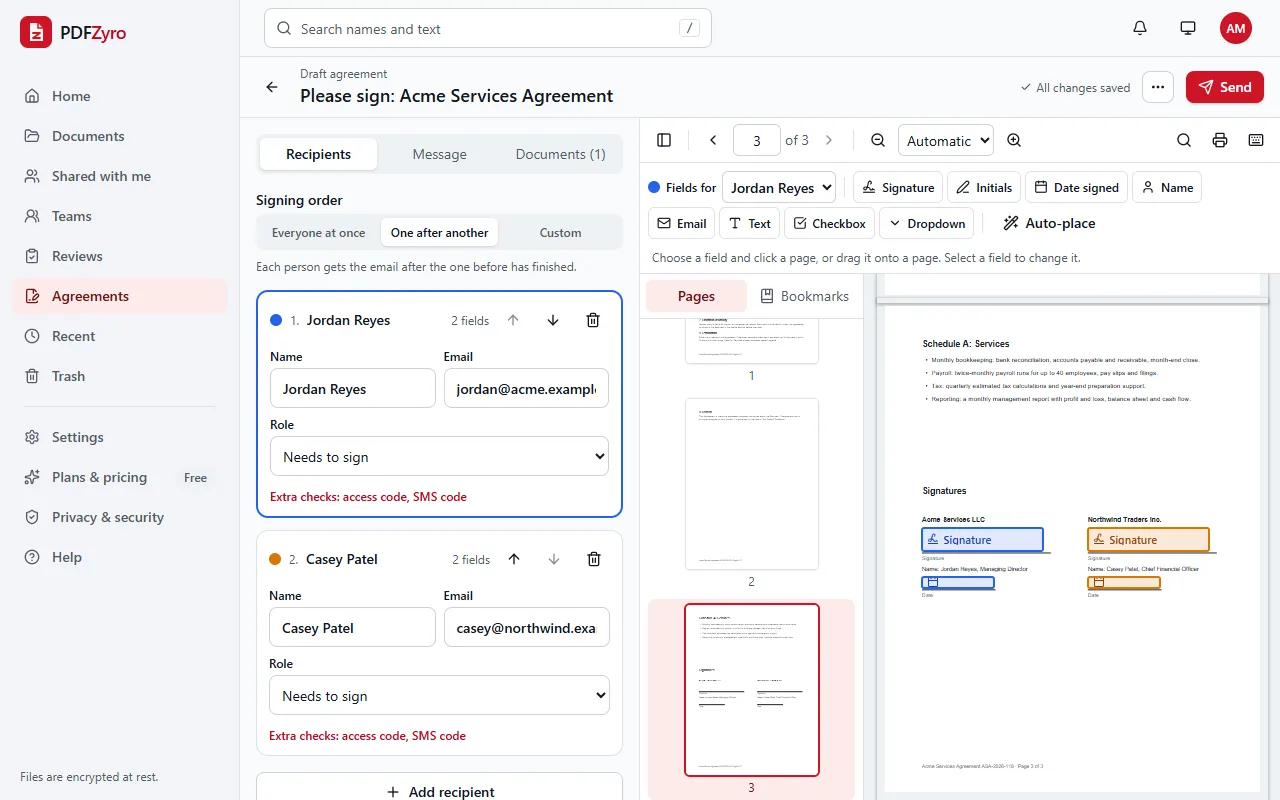
Choosing roles and the signing order
Roles decide what each person does, and the order decides when they get the email.
- Needs to sign: signs, initials and fills in the fields placed for them. Every signer needs at least one signature or initials field.
- Needs to approve: reviews the document and approves it without signing, for example a manager who must agree before the client signs.
- Receives a copy: doesn't have to do anything, and is told when the document is complete so they can download it.
- Signs in person: for someone signing at your desk or a meeting. When it's their turn, you open the request on your own device, choose Start in-person signing and record how you checked who they are.
Which signing order to choose
One after another suits most contracts: each person gets the email only after the one before has finished, so the second signer sees the first signature and nobody signs a document someone else has already refused.
Everyone at once is quicker when the order doesn't matter, such as a policy several colleagues acknowledge. With Custom, give two people the same number to let them act at the same time, before or after others: two directors can sign together once the client has signed.
Each recipient gets their own colour in the editor, so you can see at a glance whose fields are whose before you send.
Following up: reminders, corrections and cancelling
- Agreements lists every request with its status: Out for signature, Completed, Declined, Voided or Expired. Waiting for others shows the ones where someone has signed and others haven't yet.
- Open a request to see each person's progress: when the email was sent, when they opened it, when they agreed to sign electronically and when they signed.
- Automatic reminders go to whoever still has to sign, on the schedule you chose. To nudge someone now, click Remind, or Remind next to one person.
- Typed an email address wrong? Click Correct details next to the person. Their earlier link stops working and, if it's their turn, they get a new email right away.
- If someone declines, the request stops for everyone and you see the reason they gave.
- To cancel a request, choose Void (cancel)… from the more actions menu and give a reason. The links stop working and recipients are told. This can't be undone.
- An expired request can't be signed any more. Send the document again as a new request if you still need it signed.
What you get when everyone has signed
When the last person finishes, PDFZyro seals the documents and makes a certificate of completion. You get an email, and the results are in the request and in your documents:
- The signed PDF, saved as a new document with (signed) added to its name. It's sealed with a digital certificate, so any later change can be detected. Your original document isn't changed.
- A certificate of completion: a separate PDF that records who took part, what each person did and when, and the checks they passed.
- An audit trail of every event, from sending to the last signature, with each event chained to the one before so that a missing or altered entry would show.
- Signers get an email with a link to download the signed documents and the certificate. The link works for a limited time, so they should keep a copy.
- To check a signed PDF later, open it with Check signatures: it shows whether each signature is still valid or the file was changed after signing.
What helps e-signatures hold up
In the United States, the ESIGN Act and the Uniform Electronic Transactions Act (UETA) give electronic signatures the same legal effect as handwritten ones for most documents, when the people involved agree to do business electronically. Many other countries have similar laws. Some documents, such as wills and certain family, court or property documents, have special rules. This guide is general information, not legal advice.
- Consent: before they see the document, each signer reads a disclosure about signing electronically and ticks a box to agree. They can print it, or decline.
- Knowing who signed: each link goes to the signer's own email address. For extra certainty, add an access code that you share by phone or in person, or a one-time code sent by text message on the Business plan. Both are under Extra checks on the recipient.
- A record: the audit trail and the certificate of completion show what was signed, by whom and when.
- A sealed file: the digital seal shows whether the PDF has changed since it was signed.
Sending the same document often
If you send the same agreement again and again, such as a non-disclosure agreement, an offer letter or a rental application, save it as a template with Save as template… in the more actions menu. A template keeps the documents, roles, fields and message, without the people's names and email addresses. Next time, pick it under Or start from a template, fill in who signs and send.
Templates are part of the Pro plan. Bulk send, which sends one template to many people at once from a spreadsheet (CSV), is part of the Business plan.
Other ways to get a PDF signed
- Email the PDF and ask the person to sign it and send it back, with a free signing tool or by printing, signing and scanning. It costs nothing, but there's no record of who signed or when, copies can drift apart, and chasing people is up to you.
- Other e-signature services, such as DocuSign, Adobe Acrobat Sign and Dropbox Sign, work in a similar way: upload, add signers, place fields and send. Compare what's included, such as signer checks, templates and how many requests you can send, before you choose.
Questions and answers
How do I send a PDF for someone to sign?
In PDFZyro, click Request signatures, choose the PDF and click Continue, add the person's name and email, place a signature field where they sign and click Send. They get an email link and sign in their browser.
Does the person signing need an account?
No. Signers open the link in their email and sign in the browser on a computer, phone or tablet, without creating an account. Only the sender needs a PDFZyro account.
Can several people sign the same document?
Yes. Add each person as a recipient, place fields for each of them, and choose whether they sign one after another, all at once or in a custom order.
Is sending a document for signature free?
The Free plan includes a few signature requests each month, and paid plans include more. Signing your own documents isn't counted towards the Free plan's daily tasks.
How do I know when the document has been signed?
You get an email, the request's status in Agreements changes to Completed, and the signed PDF and the certificate of completion are saved in your documents. Each person's progress is shown on the request while you wait.
Can I change the document after sending it?
Not in the same request: people sign exactly the document you sent. To fix a wrong name or email address, use Correct details. To change the document itself, void the request and send a new one with the corrected file.
Terms in this guide: Signing order (sequential signing) · E-signature envelope · Electronic signature (e-signature) · Audit trail · Certificate of completion
Related guides
- How to sign a PDF for freeHow to sign a PDF online for free: create your signature, place it and download, other free ways to sign, getting others to sign, and what makes it valid.
- PandaDoc vs DocuSign vs PDFZyroPandaDoc vs DocuSign, plus PDFZyro: what each one is, which fits signing agreements, proposals or everyday PDF work, and what to check before you choose.
- How to create a fillable PDF formHow to create a fillable PDF form: turn any PDF into a form with text boxes, checkboxes, dropdowns and signature fields, test it and collect the answers.
- How to compare two PDF filesHow to compare two PDF files: the ways to do it, step-by-step instructions, what a good comparison finds, and tips for comparing contracts and scans.
Related tools
- Request signaturesSend documents for e-signature with a full audit trail.
- Sign PDFAdd your signature, initials and the date to any PDF.
- Fill PDFFill in PDF forms, even flat ones without fields.
- Word to PDFTurn Word, Excel and PowerPoint files into PDFs.
- Compare PDFSee every difference between two versions of a document.
Every PDF tool in one place
Free plan with no time limit and no watermarks. Pro is free for 7 days, no card needed.
Send for signature free