How to edit a PDF: text, pictures and pages
To edit a PDF, open it in a PDF editor, click the text you want to change and type, or use the editor's tools to add text, pictures and links or white out what shouldn't be there. Then save. You don't need the Word file the PDF was made from, and a good editor saves your changes as a new copy so the original can always be restored.
This guide shows how to edit the text of a PDF step by step, how to add and remove content, how to change pages, headers and watermarks, how to edit a scan, what PDF editing can't do, and the other ways to edit a PDF.
Updated October 14, 2026 · By the PDFZyro team
How to edit text in a PDF in PDFZyro
- Open Edit PDF on the Home page and choose the PDF from your documents, or upload it. If the document is already open, click Edit.
- With Edit text & select chosen in the toolbar (or press V), click the line of text you want to change. It opens for editing right on the page.
- Type your change and press Enter, or press Esc to cancel. A note under the line says whether it keeps its original font or which similar font is used, if the original font doesn't have a letter you typed.
- To remove a line, select it and click Delete line in the properties panel. Undo changes to this line puts it back as it was.
- Make as many changes as you need. Undo (Ctrl+Z) and Redo (Ctrl+Y) work on all of them, and unsaved edits are kept as a draft if you close the page.
- Click Save (or press Ctrl+S). The edited PDF is saved as a new version, and the earlier version stays in the history. Download it, or keep working on it.
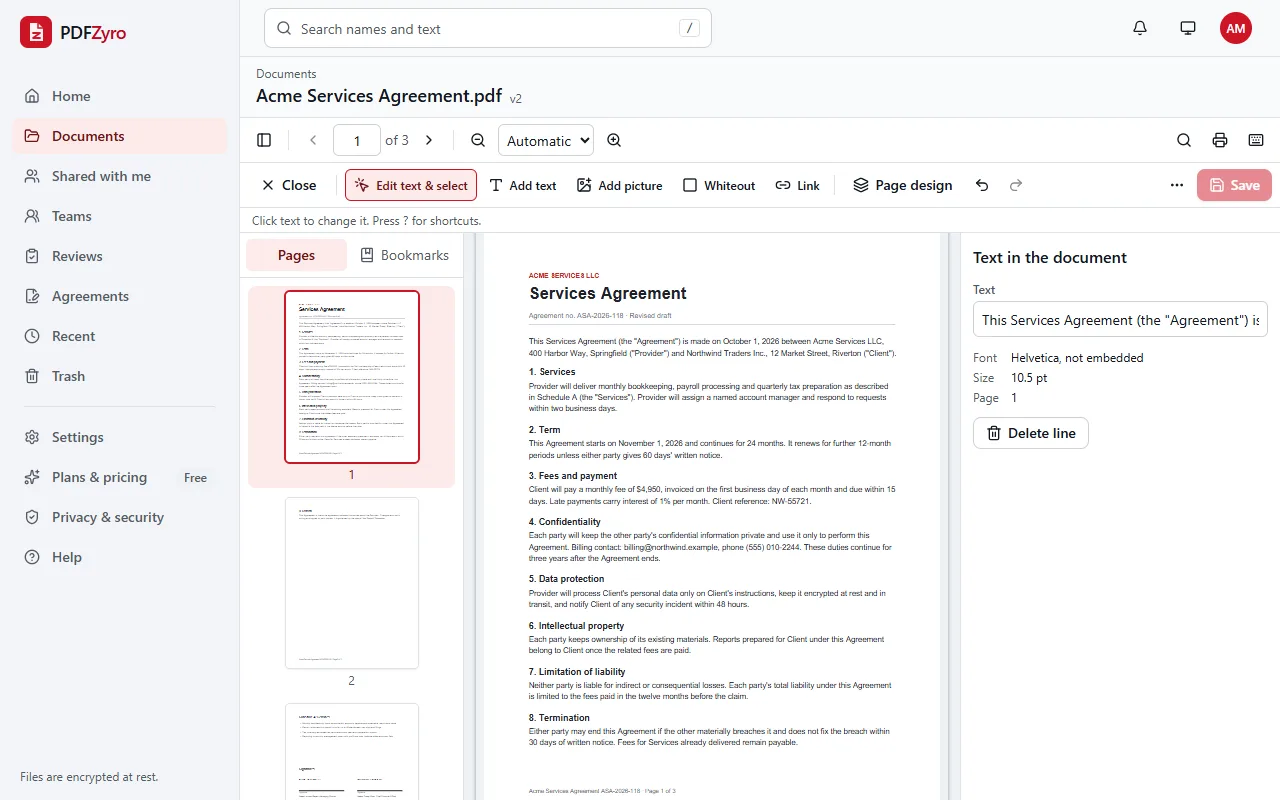
Adding text, pictures, links and whiteout
- Add text (T): click where the text should go and type. In the properties panel, choose Sans, Serif or Mono, the size, bold or italic, the alignment and the colour.
- Add picture (I): click where the picture should go and choose a JPG or PNG. Drag it to move it, drag its corner to resize it, and crop its edges in the properties panel.
- Whiteout (W): click or drag over what should disappear. Text under the box is removed when you save, not just covered, and you can change the box's colour to match a coloured background.
- Link (L): click where the link should be, then choose A web page or email address, or A page in this document. The link area is invisible in the saved PDF, so put it over text that says where it goes.
- Pictures and links already in the PDF: with Edit text & select, click them to move, resize, replace or delete them, or change where a link goes.
Changing pages, headers and watermarks
Some edits apply to whole pages rather than to a line of text. In Edit, the Page design menu has Headers & footers…, Page numbers…, Watermark…, Background… and Bates numbering…, plus Remove added headers, watermarks… to take them off again. Page design changes are saved straight away, so save or discard your text edits first.
To change the pages themselves, open Organize pages. Drag pages into a new order, use Rotate left or Rotate right, delete, duplicate or insert pages, and crop or resize them. Click Save and the result is a new version.
Filling in a form, highlighting or adding comments doesn't need Edit at all: use Fill & Sign or Comment instead.
How to edit a scanned PDF
A scan is a picture of a page, so there's no text to click on at first. Make it searchable with Make searchable (OCR) on the Home page, or Tools, then Make searchable on the open document. Text recognition reads the words and adds them to the PDF.
Then open it in Edit. Recognized lines can be changed like any other text: the scanned words are covered with white and your text is typed in a standard font. That works well for a fix here and there. To rewrite a lot of a scan, convert it to Word with PDF to Word instead.
What PDF editing can't do (and what to do instead)
- Re-flow paragraphs. A PDF is a finished layout, and text is edited one line at a time: a longer sentence doesn't wrap onto the next line. For big rewrites, convert the PDF with PDF to Word, edit it there and turn it back into a PDF with Office to PDF.
- Hide information safely. Whiteout removes the text under it, but to find and remove names or numbers across a whole document, and clean out hidden data too, use Redact.
- Edit a protected PDF. A password-protected PDF can't be edited. If you know the password, click Unlock a copy, and the unlocked copy is saved as a new version.
- Keep a digital signature valid. Editing a signed PDF means the signature no longer covers the new version, so make your edits before anyone signs.
Other ways to edit a PDF
- Adobe Acrobat: the paid version's Edit PDF tool changes text and pictures. The free Acrobat Reader can add comments and fill in and sign forms, but can't change the content of pages.
- Microsoft Word: choose File, then Open, and pick the PDF. Word converts it into an editable document that you can save as a PDF again. The layout can shift, so this suits simple documents best.
- Preview on a Mac: the Markup toolbar adds text boxes, shapes, notes and signatures, but it can't change the text that's already there.
- Microsoft Edge and Firefox: their built-in PDF viewers can add text, drawings and highlights, and Firefox can add pictures. Download the PDF afterwards to keep the changes. Neither can change existing text.
- LibreOffice Draw: this free app opens a PDF as a drawing in which lines of text can be changed. It works best with simple layouts.
Questions and answers
How do I edit the text in a PDF?
Open the PDF with Edit PDF in PDFZyro, click the line you want to change, type and press Enter. Then click Save; the edited PDF is saved as a new version you can download.
Can I edit a PDF for free?
Yes. On the Free plan, saving your changes in Edit counts as one of the daily edit, convert, compress or OCR tasks, as do headers, page numbers and watermarks. Organizing pages, comments and Fill & Sign aren't counted, and no watermark is ever added. Pro removes the daily limit.
Can I edit a PDF without Adobe Acrobat?
Yes. PDFZyro runs in your browser on Windows, Mac, Linux, ChromeOS, iPad and Android, with nothing to install, and edits text, pictures, links and pages.
Why doesn't my edited text wrap onto the next line?
PDFs don't store paragraphs, only lines of text at fixed positions, so text is edited one line at a time. For long rewrites, convert the PDF to Word, edit it there and convert it back.
Can I undo my edits after saving?
Yes. Every save is a new version and the original is never changed. Open the version history and choose Restore this version on any earlier version.
Can I edit a PDF on my phone?
Yes. PDFZyro works in the browser on iPhone, iPad and Android: open Edit PDF, tap a line of text to change it, and save.
Related guides
- How to add an image to a PDFHow to add an image to a PDF: place a JPG or PNG on the page, move, resize and crop it, add a logo to every page, and other free ways to insert a picture.
- How to convert PDF to WordHow to convert a PDF to an editable Word document: step by step, choosing pages, what converts well, tips for a clean result, and other ways to do it.
- How to add a watermark to a PDFHow to add a watermark to a PDF: text such as Confidential or Draft, or your logo, on all pages or some, behind or over the text, and how to remove it.
- Best PDF editorsHow to choose the best PDF editor: what to look for, the main kinds, popular options at a glance, and which suits occasional edits, signing or legal work.
Related tools
Every PDF tool in one place
Free plan with no time limit and no watermarks. Pro is free for 7 days, no card needed.
Edit a PDF free