How to sign a PDF on your iPhone or Android phone
To sign a PDF on a phone, open it in a signing tool in your phone's browser or an app, tap where the signature goes, draw your signature with your finger or type it, add the date if needed, and save or send the signed copy. On iPhone and Android it takes a minute or two, with no printer, scanner or computer.
This guide shows how to sign a PDF from an email or your files on iPhone and Android, how to get a neat signature on a small screen, how to sign a document someone sent you for e-signature, and the options built into your phone.
Updated October 15, 2026 · By the PDFZyro team
First, get the PDF onto your phone
If the PDF came as an email attachment, open it and save it to your phone: on an iPhone, use the Share button and choose Save to Files; on Android, use the download button so it goes to your Downloads. The exact buttons depend on your email app.
If the email contains a link to review and sign instead of an attachment, you don't need to save anything: go straight to the section on signing a document sent for e-signature below.
How to sign a PDF on iPhone or Android in PDFZyro
- Open PDFZyro in Safari, Chrome or your phone's browser, sign in or create a free account, and tap Sign on the Home page. If you've just created your account, confirm your email address first with the link PDFZyro sends you.
- Tap Choose a PDF and pick the file from your phone, or choose a document you already have in PDFZyro.
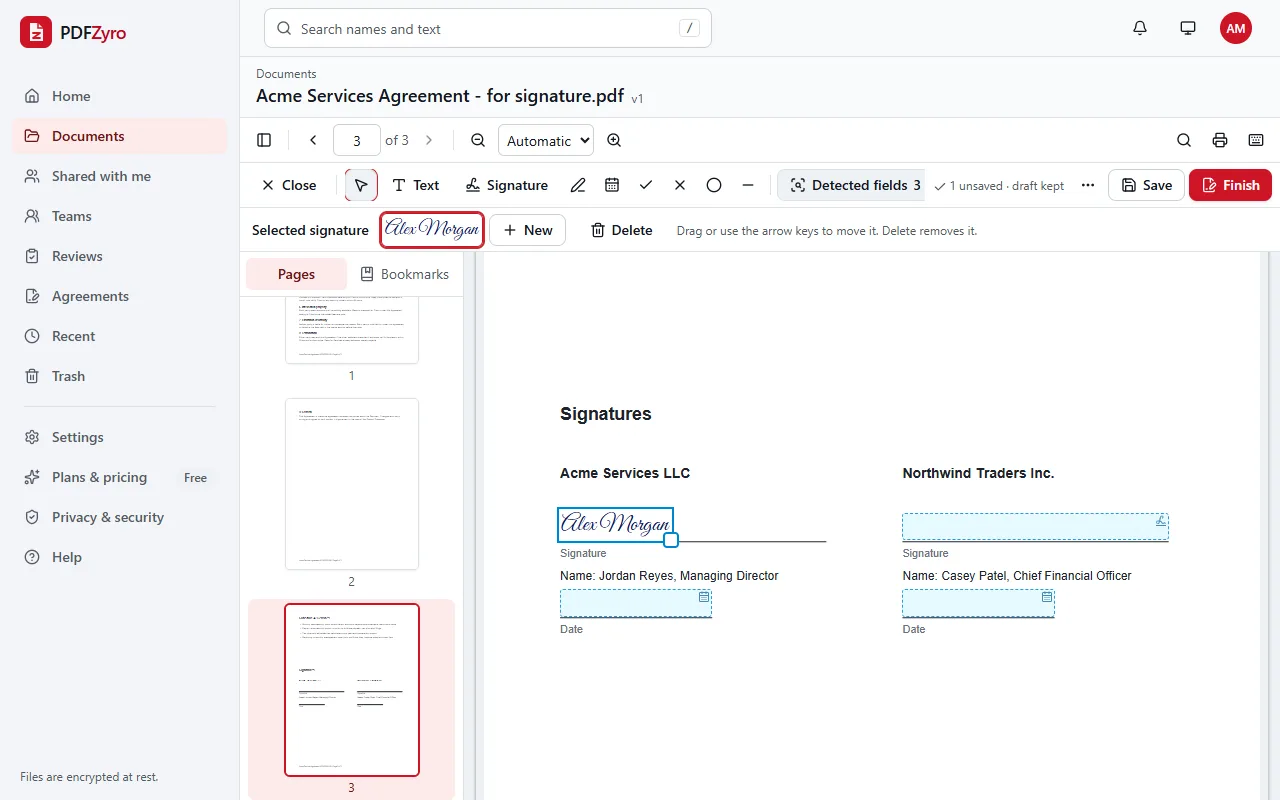
- The Signature tool is already selected. Tap the page where you want to sign; zoom in first if the signature line is small.
- The first time, create your signature: choose Draw and sign with your finger, or Type and pick a handwriting style, choose the ink colour, and confirm. Your signature is saved to your account for next time.
- Drag the signature onto the line and drag its corner to resize it. Add Initials and the Date from the toolbar if the document asks for them; on a narrow screen, scroll the toolbar sideways to see every tool.
- Tap Finish, which shows as an icon at the right of the toolbar on a narrow screen. Read and tick the consent to sign electronically, then tap Sign and download.
- PDFZyro seals the signed PDF so any later change can be detected, saves it as a new version and downloads it to your phone, ready to attach to an email or a message.
Tips for a neat signature on a small screen
- Turn your phone sideways for a wider drawing area.
- Sign with the tip of your finger in one or two smooth strokes, and tap Clear to start again if it doesn't look right.
- On an iPad, a stylus such as Apple Pencil gives the most natural result.
- If drawing feels awkward, use Type: a typed name in a handwriting style is also an electronic signature.
- Your saved signature works on every device you sign in on, so you can draw it once on your phone and use it on your computer too.
- Add PDFZyro to your home screen to open it like an app: on an iPhone, tap Share in Safari, then Add to Home Screen; on Android, choose Install app or Add to Home screen in the browser menu.
How to sign a document someone sent you for e-signature
When someone uses PDFZyro to ask for your signature, you get an email with a link. You don't need a PDFZyro account or an app, and you can sign on your phone.
- Open the email on your phone and tap Review and sign.
- If the sender asked for an access code or a code by text message, enter it.
- Read the disclosure about using electronic records and signatures, tick to agree and tap Continue.
- Tap Start to go to the first place to fill in, then Next to move through each required field. Tap a signature field to adopt your signature.
- When everything required is done, tap Finish and confirm. You'll get a copy of the signed document when everyone has signed.
Built-in ways to sign a PDF on your phone
- iPhone and iPad: open the PDF in the Files app or from an email attachment, tap the Markup button, then the plus button, and choose Add Signature. You can draw a signature with your finger and place it on the page. The buttons can differ between iOS versions.
- Android: there is no signing tool built into every Android phone. Some phones' file or PDF apps let you draw on a PDF, and several PDF companies offer free fill-and-sign apps.
- These are fine for a quick signature on a form or a delivery note. They usually don't ask for consent, seal the file or keep a record of who signed and when, which matters more for contracts and agreements.
Is a signature made on a phone legally valid?
Generally, yes. The device doesn't matter: a signature drawn with your finger on a phone is an electronic signature, just like one made with a mouse. In the United States, the ESIGN Act and UETA give electronic signatures legal effect for most documents when the people involved agree to sign electronically, and many other countries have similar laws. Some documents, such as wills, have special rules, so check if you're not sure. This is general information, not legal advice.
Questions and answers
How do I sign a PDF on my iPhone for free?
Open PDFZyro in Safari, create a free account, tap Sign, choose the PDF, tap where to sign and draw your signature with your finger, then tap Finish and Sign and download. Signing your own documents isn't counted towards the Free plan's daily tasks.
How do I sign a PDF on an Android phone?
Open PDFZyro in Chrome or your phone's browser, tap Sign, choose the PDF from your phone, tap where to sign, draw or type your signature, then tap Finish and Sign and download.
Do I need an app to sign a PDF on my phone?
No. PDFZyro works in the browser on iPhone, iPad and Android. You can add it to your home screen to open it like an app, but you don't have to.
Can I sign a PDF from an email on my phone?
Yes. Save the attachment to your phone, then choose it in PDFZyro and sign. If the email contains a signing link instead, just tap it and follow the steps.
How do I send the signed PDF back?
After you tap Sign and download, the signed PDF is in your phone's downloads. Attach it to a reply email or a message. The signed copy also stays in your PDFZyro documents.
Can I sign a PDF on an iPad?
Yes, in the same way, and you can draw your signature with your finger or an Apple Pencil.
Related guides
- How to sign a PDF for freeHow to sign a PDF online for free: create your signature, place it and download, other free ways to sign, getting others to sign, and what makes it valid.
- How to fill in a PDF formHow to fill in a PDF form: fillable, flat and scanned forms, step-by-step instructions, other free ways to do it, and what to check before you send it.
- DocuSign vs PandaDoc vs PDFZyroDocuSign vs PandaDoc vs PDFZyro: what each one is, which fits signing agreements, proposals or everyday PDF work, and what to check before you choose.
Related tools
Every PDF tool in one place
Free plan with no time limit and no watermarks. Pro is free for 7 days, no card needed.
Sign a PDF free