Convert PDF to PNG images, one per page
Save PDF pages as PNG pictures when sharpness matters: text, charts, diagrams and slides stay crisp, without the blur that JPG compression can leave around letters. Pick the resolution, convert, and the PNG files download by themselves.
Free plan with no time limit. Pro free for 7 days, no card needed.
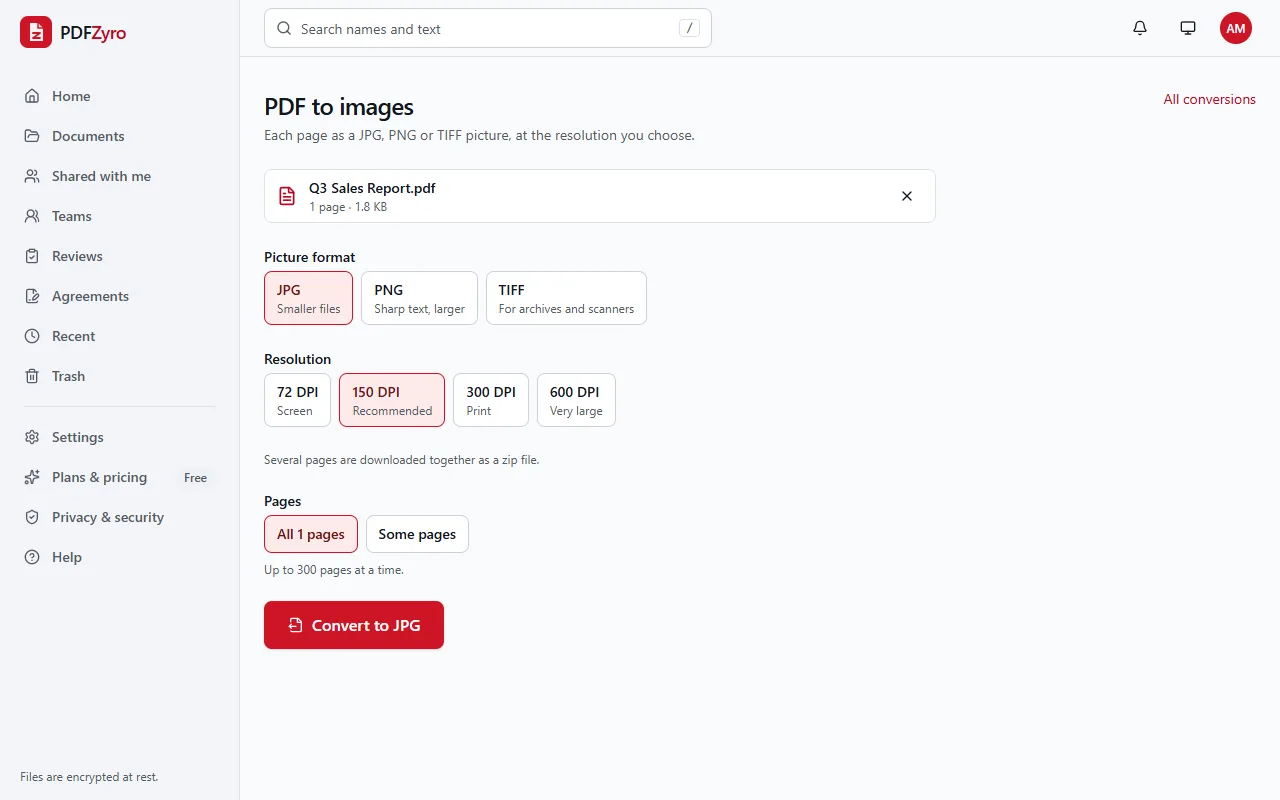
How to convert a PDF to PNG
Open PDF to images
Pick the PDF from your library or upload it in PDF to images, the conversion that makes JPG, PNG and TIFF pictures.
Choose a resolution
PNG is already selected under Picture format. Pick 72, 150, 300 or 600 DPI, and all pages or only some, such as 2-4.
Download your PNGs
Click Convert to PNG. A single page downloads as a .png file; several pages come together in a zip, one PNG per page.
PNG pictures of your pages
Lossless pictures
PNG stores every pixel exactly, so small print and thin lines stay sharp. That suits documents, charts and slides better than a photo format.
The resolution you need
72 DPI for quick previews, 150 DPI for screens (recommended), 300 DPI for printing and 600 DPI for zooming into fine detail.
Some pages or all
Convert up to 300 pages at a time, or type just the pages you want, such as 1, 3-5.
Named by page
In the zip, each picture is named after the PDF and its page number, so the files stay in order.
Ready for slides and documents
Each page is drawn on a white background, as it looks in a PDF reader, ready to drop into a presentation, a document or a web page.
Private by design
Encrypted and private
Every file is encrypted before it's stored, and only you and the people you share with can open it.
Your original stays safe
Every change is saved as a new version. The original is never changed, and you can restore it at any time.
No watermarks
Files you save never get a watermark, on any plan, including the free one.
Works in your browser
Nothing to install. Use it on Windows, Mac, Linux, Chromebooks, iPhone, iPad and Android.
Questions and answers
How do I convert a PDF to PNG?
Open PDF to images in PDFZyro, choose the PDF, select PNG as the picture format, pick a resolution and click Convert to PNG. The download starts by itself when it's ready.
Should I convert my PDF to PNG or JPG?
PNG for pages with text, charts, screenshots and line drawings, which stay sharp. JPG for pages that are mostly photos, where it makes much smaller files. PDF to JPG uses the same conversion, so you can try both.
What resolution should I pick?
150 DPI suits screens, messages and slides, and 300 DPI suits printing. 600 DPI makes very large files, so keep it for details you need to zoom into. Very large pages are made at a lower resolution to stay within the size limit, and PDFZyro tells you when that happens.
Will the PNG files have a transparent background?
No. Each page is saved on white, as it appears in a PDF reader. To keep a logo's transparent background, use the original picture file rather than a page of the PDF.
How long can I download the PNG files?
The pictures can be downloaded for 24 hours after the conversion. The PDF itself stays in your library, so you can convert it again at any time.
Is PDF to PNG free?
Yes. The Free plan includes 3 edit, convert, compress or OCR tasks a day, with files up to 50 MB, and never adds a watermark. Pro removes the daily limit and is free to try for 7 days, with no card needed.
Related tools
- PDF to JPGSave each page of a PDF as a JPG, PNG or TIFF picture.
- PNG to PDFTurn screenshots and PNG pictures into a sharp PDF.
- Compress PDFMake PDFs smaller to email and share.
- Extract PDF pagesCopy the pages you choose into one new PDF.
- Split PDFSplit a PDF by page ranges, every few pages, size or bookmarks.
Switching from another app? Adobe Acrobat alternative · Foxit PDF Editor alternative · Smallpdf alternative · iLovePDF alternative
Your pages as crisp pictures
Create a free account in under a minute. No card needed, and no watermarks on anything you save.
Convert PDF to PNG free