Rotate PDF pages and save them the right way up
Fix a scanned page that came out sideways, a landscape table that reads the wrong way or a page that is upside down. Turn just the pages that need it, save, and the PDF opens the right way up in every reader.
Free plan with no time limit. Pro free for 7 days, no card needed.
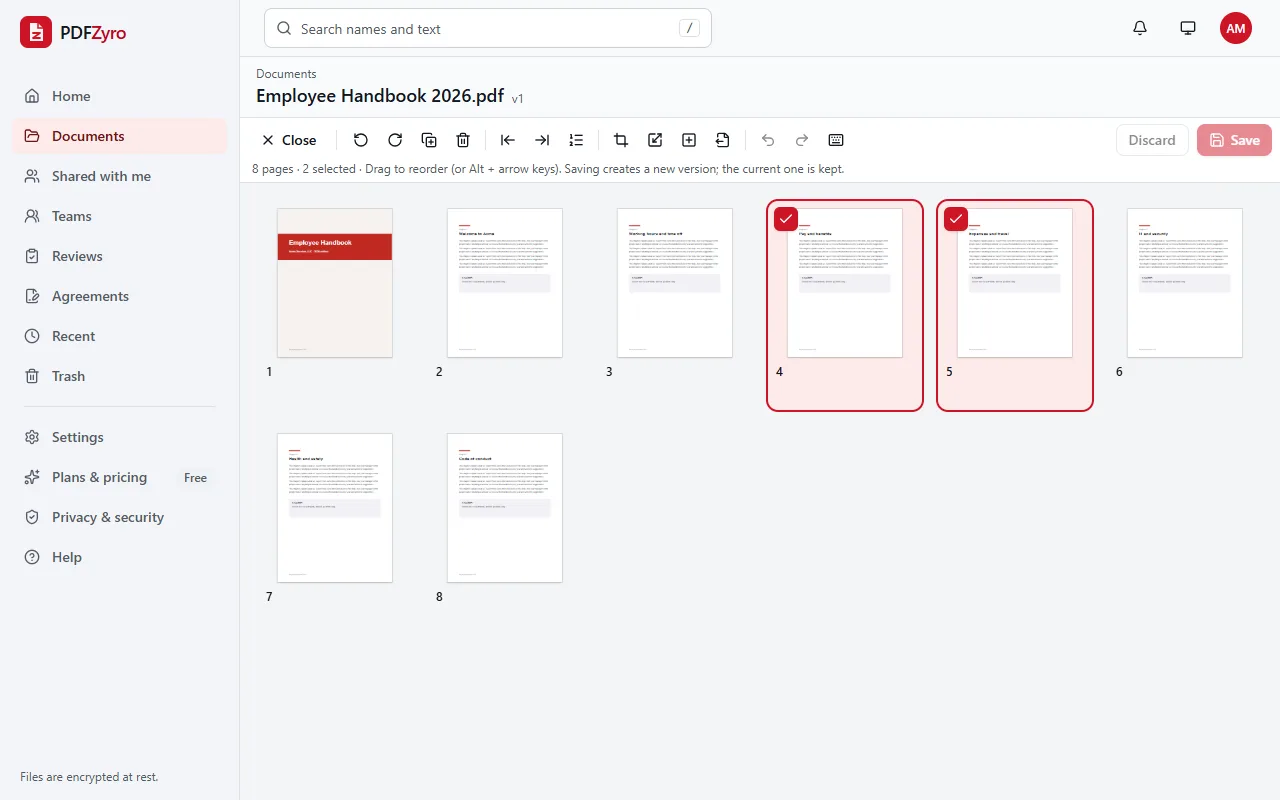
How to rotate PDF pages
Open the PDF
Open Organize pages and choose a document from your library, or upload one. Every page appears as a thumbnail.
Select and rotate
Select the pages to turn, or press Ctrl+A for all of them, then click Rotate right or Rotate left. Click twice to turn a page upside down.
Save
Click Save. The rotated document is saved as a new version, and the earlier version stays in the history.
Want the details? Read our guide: How to rotate PDF pages
Rotation that sticks
One page, some or all
Click a page, Shift-click a run of pages, Ctrl-click to add single pages or select them all, then turn them together.
Saved in the file
Unlike the rotate button in many PDF viewers, which only turns your screen, the new orientation is saved in the PDF, so it opens the right way for everyone.
No loss of quality
Rotating changes the page's orientation setting; the page isn't redrawn or turned into a picture, so text stays sharp, selectable and searchable.
See it before you save
Thumbnails show each page's new orientation and how far it has turned. Undo and Redo work until you save, and Discard drops every change.
Keyboard shortcuts
Press R to rotate right and Shift+R to rotate left, use the arrow keys to move between pages and Space to select them.
Fix the rest in the same visit
Reorder, delete, duplicate, insert, crop and resize pages too. Everything you change is saved together as one new version.
Private by design
Encrypted and private
Every file is encrypted before it's stored, and only you and the people you share with can open it.
Your original stays safe
Every change is saved as a new version. The original is never changed, and you can restore it at any time.
No watermarks
Files you save never get a watermark, on any plan, including the free one.
Works in your browser
Nothing to install. Use it on Windows, Mac, Linux, Chromebooks, iPhone, iPad and Android.
Questions and answers
How do I rotate a PDF and save it?
Open the PDF with Organize pages in PDFZyro, select the pages, click Rotate right or Rotate left and click Save. The rotation is saved in the file as a new version, so it stays when you download, print or share the PDF.
Can I rotate just one page of a PDF?
Yes. Select only that page and rotate it. The other pages keep their orientation, and a PDF can mix portrait and landscape pages without any problem.
How do I rotate a PDF 180 degrees?
Rotate the pages twice in the same direction: each click of Rotate right or Rotate left turns them 90 degrees, so two clicks turn an upside-down page the right way up.
Does rotating a PDF reduce its quality?
No. The pages keep their content exactly as it was; only their orientation changes. Text stays searchable and the file size barely changes.
Is Rotate PDF free?
Yes. Rotate PDF isn't counted towards the Free plan's daily tasks, so you can use it as much as you like with files up to 50 MB. Pro adds unlimited edit, convert, compress and OCR tasks and more storage, and is free to try for 7 days.
Related tools
- Organize PDFReorder, delete, insert, rotate and resize pages.
- OCR PDFMake scanned PDFs searchable and editable.
- Merge PDFCombine several PDFs into one, in the order you choose.
- JPG to PDFTurn pictures into one PDF, or one PDF each.
Switching from another app? Adobe Acrobat alternative · Foxit PDF Editor alternative · Smallpdf alternative · iLovePDF alternative
No more turning your head to read a page
Create a free account in under a minute. No card needed, and no watermarks on anything you save.
Rotate a PDF free