How to rotate PDF pages and save the change
To rotate pages in a PDF and keep them that way, open the PDF in a tool that can organize pages, select the pages that are sideways or upside down, turn them left or right and save. The new orientation is then stored in the file, so the pages open the right way up for everyone who reads, prints or receives it.
This guide shows how to rotate one page, several or all of them, why the rotate button in many PDF viewers doesn't fix the file, how to straighten sideways scans, and the other ways to rotate PDF pages on a Mac or with Adobe Acrobat.
Updated October 15, 2026 · By the PDFZyro team
How to rotate PDF pages in PDFZyro
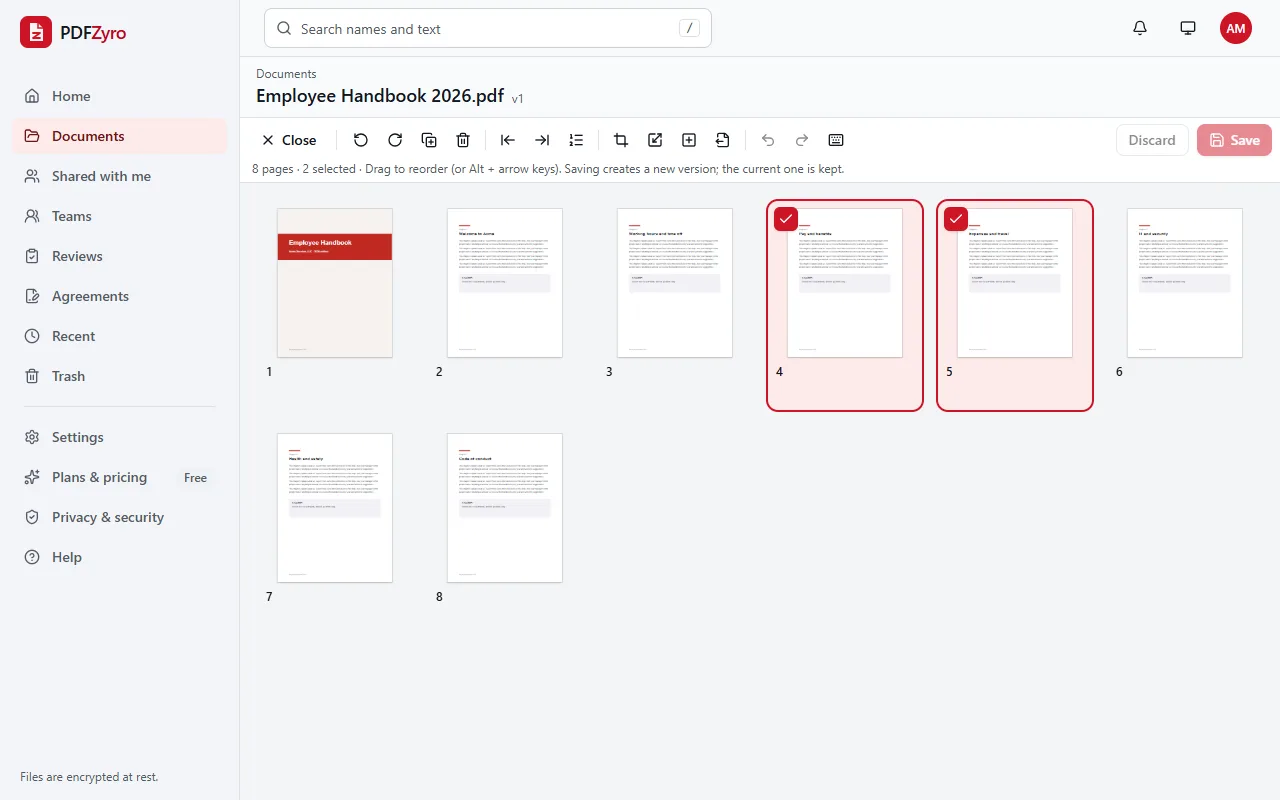
- Open Organize pages on the Home page and choose the PDF from your documents, or upload it. If the document is already open, click Organize pages.
- Select the pages to turn. Click a page to select it, Shift-click another to select every page in between, or Ctrl-click (⌘-click on a Mac) to add single pages. Press Ctrl+A (⌘A on a Mac) to select every page.
- On a phone or tablet, tap the box in the corner of each page you want to add to the selection.
- Click Rotate right to turn the selected pages 90 degrees clockwise, or Rotate left to turn them 90 degrees anticlockwise. The keyboard shortcuts are R and Shift+R.
- For an upside-down page, rotate it twice. Each thumbnail shows its new orientation and how many degrees it has turned, so you can check before saving.
- Click Save. The rotated document is saved as a new version, and the earlier version stays in the document's history.
Rotating the view is not the same as rotating the page
Many PDF readers, including the viewer built into Chrome and the free Adobe Acrobat Reader, have a rotate button. It turns the page on your screen, which is fine for a quick look, but the file itself doesn't change: close it and open it again, or send it to someone, and the page is sideways once more.
To fix a PDF for good, the rotation has to be saved in the file. Every PDF page has an orientation setting, in steps of 90 degrees, that tells readers and printers which way up to show it. Rotating pages in Organize pages changes that setting and saves a new version of the document, so the page opens the right way up everywhere.
Does rotating change the quality?
No. Because rotating changes only the page's orientation setting, the content of the page isn't redrawn, compressed or turned into a picture. Text stays sharp and can still be selected, searched and copied, and the file size barely changes.
It doesn't matter how many times you turn a page before saving, either: only the final orientation is saved, and you can always go back to the earlier version from the document's history.
Straightening sideways scans
Scanners and phone scanning apps often save some pages sideways, especially when a stack mixes portrait letters with landscape tables. You can turn those pages by hand in Organize pages, as above.
If the scan also needs its text recognized, so you can search and copy it, Make searchable (OCR) can do both at once: leave Turn sideways pages upright ticked, and pages whose text runs sideways are turned the right way while the text is read. Making a scan searchable counts as one of the Free plan's daily tasks; rotating pages in Organize pages doesn't.
Other ways to rotate PDF pages
- Preview on a Mac: show the thumbnails (View, then Thumbnails), select the pages, and choose Tools, then Rotate Left or Rotate Right. Then choose File, then Save, or File, then Export as PDF to keep the original as it is.
- Adobe Acrobat: the paid version's Organize Pages tool rotates pages and saves the change. In the free Acrobat Reader, Rotate View only turns the page on your screen.
- Chrome's built-in PDF viewer: its rotate button turns the view only, and the file you download keeps its original orientation.
- Word or another word processor: if you still have the original document, change the page orientation there and save it as a PDF again.
Tips for rotating PDF pages
- Rotate first, then add page numbers, Bates numbers or a watermark, so they sit along the edge where readers expect them.
- Landscape pages don't need to become portrait. A PDF can mix portrait and landscape pages; only turn the pages that read sideways.
- Rotate before you sign or send a document for signature. Changing a signed PDF means its digital signature no longer covers the new version.
- A password-protected PDF can't be organized until its password is removed. If you know the password, use Remove password first.
- Undo and Redo work until you save, and Discard throws away every change you haven't saved.
Questions and answers
How do I rotate a PDF and save it?
Open the PDF with Organize pages in PDFZyro, select the pages, click Rotate right or Rotate left, then click Save. The rotation is saved in the file as a new version, so it stays when you download, print or share the PDF.
How do I rotate only one page in a PDF?
Select just that page in Organize pages and rotate it. The other pages keep their orientation, and a PDF can mix portrait and landscape pages without any problem.
How do I rotate all the pages of a PDF at once?
In Organize pages, press Ctrl+A (⌘A on a Mac) to select every page, then click Rotate right or Rotate left once and save.
Is rotating PDF pages free?
Yes. Organizing pages, including rotating them, isn't counted towards the Free plan's daily tasks, so you can rotate pages as often as you need, with files up to the Free plan's size limit. No watermark is added.
Why does my PDF still open sideways on other computers?
Most likely the page was only turned in a viewer, not in the file, or the scanner saved it sideways. Rotate it in Organize pages and save, and the new orientation is stored in the PDF itself.
Can I rotate PDF pages on my phone?
Yes. PDFZyro works in the browser on iPhone, iPad and Android: open Organize pages, tap the box on each page you want, tap Rotate right or Rotate left, then Save.
Related guides
- How to delete pages from a PDFHow to delete pages from a PDF: remove one page or many, clear blank pages from scans, get a deleted page back, and other ways on a Mac or with Acrobat.
- How to make a scanned PDF searchableHow to make a scanned PDF searchable with OCR: why scans can't be searched, step-by-step instructions, tips for accurate text recognition, and other ways.
- How to add pages to a PDFHow to add pages to a PDF: insert blank pages or pages from another PDF, add scans and photos, merge whole files, and other ways to do it, step by step.
Related tools
Every PDF tool in one place
Free plan with no time limit and no watermarks. Pro is free for 7 days, no card needed.
Rotate a PDF free