How to merge PDF files into one
To merge PDF files, open a PDF merge tool, add the files you want to combine, drag them into the order they should appear and click Merge. The tool joins every page into one new PDF, and the files you started from stay as they are. You don't need the original Word files or a paid copy of Adobe Acrobat.
This guide shows how to merge PDFs step by step, what the combined file looks like, how to add pictures and Word files to the mix, how to tidy the result, and the other ways to combine PDFs on a Mac or with Acrobat.
Updated October 14, 2026 · By the PDFZyro team
How to merge PDF files in PDFZyro
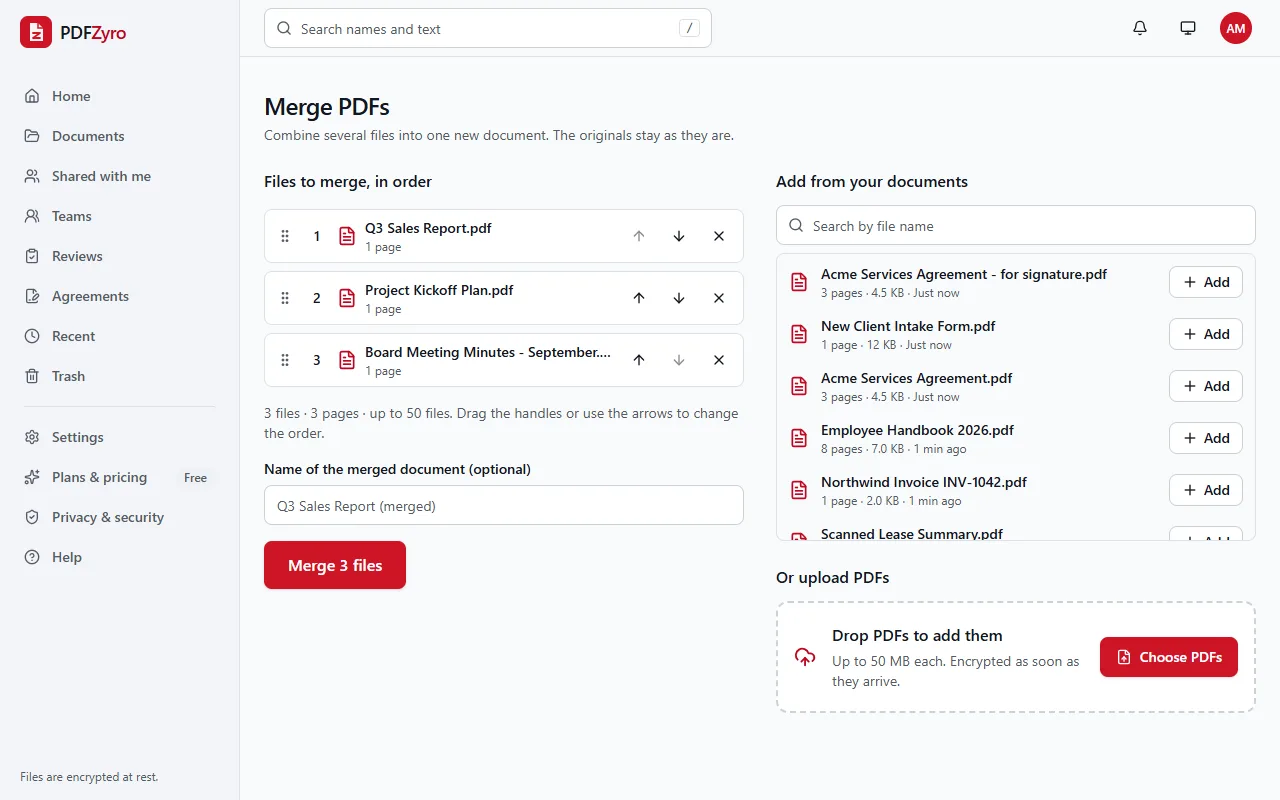
- Open Merge on the Home page. If a document is already open, choose Merge with other files… from its Tools menu, and it's added to the list for you.
- Add the PDFs: click Add next to documents in your library, or drop PDFs onto the upload area to upload them. You can combine up to 50 files at once.
- Put the files in order. Drag them by their handles, or use the up and down arrows next to each one. The list shows how many files and pages you're combining.
- Type a name for the merged document if you like. If you leave it empty, it's named after the first file, with (merged) at the end.
- Click the Merge button, which shows how many files you're combining, for example Merge 3 files. The merge runs in the background and shows its progress.
- Click Open the merged document to read it, download it or keep working on it. The original files haven't changed.
What the merged PDF looks like
- It's a new document, usually saved in the same folder as the first file in the list.
- Every page keeps its own size and orientation, so a landscape spreadsheet stays landscape next to portrait letters.
- Each file you merged gets a bookmark with its name, and its own bookmarks are kept underneath, so it's easy to jump to the start of each part.
- Its version history notes which files it was made from.
- The files you started from aren't touched. Keep them, or delete them once you're happy with the result.
Merging pictures, Word files and scans
Merge combines PDFs. To include a photo, a scanned picture or a Word document, turn it into a PDF first, then add it to the merge like any other document:
- Pictures (JPG, PNG, GIF, WebP, TIFF or BMP): open Images to PDF on the Home page and convert them. The new PDF is added to your documents.
- Word, Excel and PowerPoint files: open Office to PDF on the Home page and convert them.
- Scanned PDFs merge like any other PDF. To search or copy their text afterwards, run Make searchable (OCR) on the merged document.
Tidying up the merged PDF
Merging joins whole files. Once you have the combined document, open it with Organize pages to fine-tune it: drag pages into a different order, use Rotate left or Rotate right on sideways scans, and delete blank or unwanted pages. Click Save and the changes are kept as a new version, with the first merged version still in the history.
Need only part of a file in the merge? Use Extract pages first to copy the pages you need into a new document, then merge that instead of the whole file.
Then finish the document: add page numbers or Bates numbers across the whole thing, compress it if it's too big to email, or send it for signature.
Other ways to merge PDFs
- Preview on a Mac: open the first PDF and show the thumbnails (View, then Thumbnails). Drag the other PDF from Finder into the thumbnail sidebar, where its pages should go. Then choose File, then Export as PDF, to save the combined file under a new name.
- Finder on a Mac: select the PDFs, Control-click them and choose Quick Actions, then Create PDF. Check the page order of the new file afterwards.
- Adobe Acrobat: the paid version's Combine Files tool merges PDFs and other files. The free Acrobat Reader can't combine files.
- Windows: there's no built-in tool for combining PDFs, so you need a PDF app or an online tool such as PDFZyro.
Tips for merging PDFs
- Name files with numbers (01 Cover, 02 Report, 03 Appendix) before you start, so the right order is obvious.
- A password-protected PDF can't be merged. If you know the password, remove it first with Remove password on the Home page.
- Merge first, number last. Page numbers and Bates numbers don't update themselves, so add them to the finished document.
- Merging creates a new file, so digital signatures in the originals don't carry over as valid signatures. Keep the signed originals as your record.
- Merged files can get big. If yours is too large to email, compress it, or share a link to it instead.
Questions and answers
How do I combine PDF files into one?
Open Merge in PDFZyro, add the PDFs from your documents or upload them, drag them into order and click Merge. The combined PDF is saved as a new document you can open or download.
Is merging PDFs free?
Yes. Merging isn't counted towards the Free plan's daily tasks, so you can merge as often as you need, with files up to the Free plan's size limit. No watermark is added.
How many PDFs can I merge at once?
Up to 50 files in one merge. To combine more, merge them in groups and then merge the results.
Will merging change my original PDFs?
No. Merging creates a new document, and the files you started from stay exactly as they were.
Can I merge only some pages of a PDF?
Merge combines whole files. Copy the pages you need into a new document with Extract pages first, or merge everything and delete the pages you don't want in Organize pages.
Can I merge PDFs on my phone?
Yes. PDFZyro works in the browser on iPhone, iPad and Android: open Merge, add the files, use the arrows to put them in order and tap Merge.
Related guides
- How to add pages to a PDFHow to add pages to a PDF: insert blank pages or pages from another PDF, add scans and photos, merge whole files, and other ways to do it, step by step.
- How to split PDF pagesHow to split PDF pages into separate files: by page ranges, every few pages, file size or bookmarks, or extract just the pages you need. Step by step.
- How to extract pages from a PDFHow to extract pages from a PDF into one new file: pick pages by number or by sight, in any order, from any version, and when to split or delete instead.
- How to reduce PDF size for emailHow to reduce a PDF's size for email: attachment limits, how to compress step by step, which quality to pick, and what to do when a PDF is still too big.
Related tools
Every PDF tool in one place
Free plan with no time limit and no watermarks. Pro is free for 7 days, no card needed.
Merge PDFs free