How to type on a PDF and add text anywhere
To type on a PDF, open it in a PDF tool that lets you add text, click where you want to write and type, then save a copy. If the PDF is a form with fillable fields, click a field and type straight into it. If it isn't, use a Text tool to place your words anywhere on the page. You can do it in your browser, for free, without printing anything.
This guide explains the different ways to add text to a PDF, from filling in fields to placing text, adding text box comments and changing the words already there, and shows how to do each one step by step.
Updated October 15, 2026 · By the PDFZyro team
Four ways to add text to a PDF
A quick test tells you where to start: open the PDF and click a blank. If a cursor appears, the form is fillable. If nothing happens, place your text with a Text tool instead.
- Type into form fields: fillable forms have fields built in. Click one and a cursor appears.
- Place text on the page: for flat forms and scans, which have no fields, a Text tool puts your words exactly where you click. This is how most people fill in a form that isn't fillable.
- Add a text box as a comment: a comment stays separate from the page, so it can be moved, edited or deleted later in any PDF reader. It suits review notes and feedback.
- Add or change content: a PDF editor adds text in the font you choose, or changes the words that are already on the page.
How to type on a PDF form in PDFZyro
Text you place with the Text tool becomes part of the page when you save, so it looks the same in every PDF reader and can't be dragged around like a comment.
- Create a free PDFZyro account, open Fill forms on the Home page and choose the PDF from your documents, or upload it. If the document is already open, click Fill & Sign.
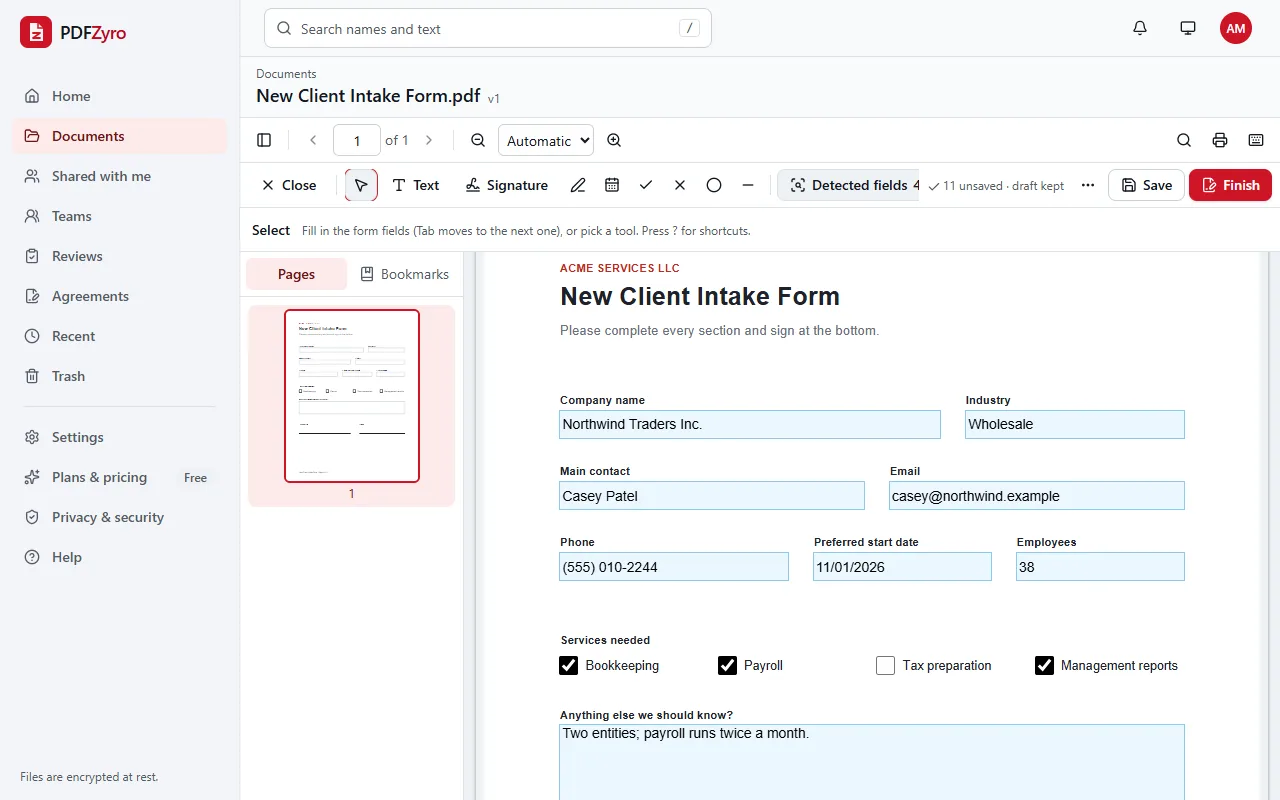
- If the form has fields, click into the first one and type. Press Tab to move to the next field.
- If the form is flat, look for the dashed boxes. PDFZyro finds blank lines, empty boxes and labels such as Name: with room after them. Click one and type.
- To type anywhere else, choose the Text tool (or press T) and click where the text goes. Choose the text size, and black, blue or red.
- Use Check mark, Cross or Dot for boxes, and the Date tool to add today's date in the format you choose.
- Click Save. The filled-in PDF is saved as a new version, with the blank form kept in the history, and you can download it.
How to add text to a PDF with Edit PDF
Use Edit PDF when the text should look like part of the document, in a font you choose, or when you need to change words that are already there.
- Open Edit PDF on the Home page and choose the PDF, or click Edit on an open document.
- Choose Add text (or press T), click where the text should go and type.
- In the properties panel, choose Sans, Serif or Mono, the size, bold or italic, the alignment and the colour. Drag the text to move it.
- To change existing words, choose Edit text & select (or press V), click the line, type your change and press Enter.
- Click Save (or press Ctrl+S, or Command-S on a Mac). The edited PDF is saved as a new version.
How to add a text box comment
For notes to someone else, such as a question in a contract or a correction in a draft, use a comment instead. Open Comment on the Home page or on an open document, choose Text box (or press T), click or drag on the page and type. Choose the text size and colour. Callout adds a text box with a line that points at what you're talking about, and Sticky note adds a small note icon that opens when clicked.
Click Save to keep the comments as a new version. They stay editable, so people reviewing the PDF in Adobe Acrobat Reader, Preview or another reader can reply to them or remove them. To fix them in place, flatten the PDF.
Typing on a scanned PDF
A scan is a picture of a page, so there are no fields to click and no words for a computer to read. Choose the Text tool in Fill & Sign and click where each answer goes; with Select, you can move anything you placed to line it up.
To change the words in a scan rather than add to them, make it searchable first with Make searchable (OCR). The recognized lines can then be changed in Edit PDF like any other text.
Other free ways to type on a PDF
- Adobe Acrobat Reader: the free Reader fills in fillable fields, and its Fill & Sign tool adds text anywhere on the page.
- Preview on a Mac: type into fillable fields directly, or use the Text tool in the Markup toolbar to add a text box.
- Microsoft Edge and Firefox: their built-in PDF viewers can add text to a page. Download or save the PDF afterwards so your text is kept.
- iPhone and iPad: the Markup tool in apps such as Files and Mail can add text to a PDF.
Tips for typing on a PDF
- Zoom in before you place text, so it sits neatly on the line rather than across it.
- Match the size of the form's own text, and use black or blue for official forms.
- Keep the blank original. In PDFZyro, every save is a new version, so the empty form is still in the history.
- If the answers shouldn't change, tick Flatten the form when you finish filling in a fillable form.
- Check every page before you send the PDF, especially the last one, which often asks for a signature and date.
Questions and answers
How do I type on a PDF for free?
Create a free PDFZyro account, open the PDF with Fill forms, choose the Text tool and click where you want to type. Filling in and signing isn't counted towards the Free plan's daily tasks, and no watermark is added.
Why can't I type on my PDF?
Usually because it has no fillable fields: the lines are printed on the page, or it's a scan. Use a Text tool to place your words on the page instead. If the PDF is password-protected against changes, you need its permissions password to unlock it first.
How do I add text to a PDF that isn't a form?
Open it with Fill forms and use the Text tool, or open it in Edit PDF and use Add text, which also lets you choose the font, bold or italic and the alignment.
Can I change the font of the text I add?
In Edit PDF, yes: choose Sans, Serif or Mono, the size, bold or italic and the colour. In Fill & Sign, you choose the size and black, blue or red.
Can someone change what I typed?
Text added with Fill & Sign or Edit PDF becomes part of the page, so it can't be moved or edited like a comment. Text box comments stay editable until the PDF is flattened.
Can I type on a PDF on my phone?
Yes. PDFZyro works in the browser on iPhone, iPad and Android: open Fill forms, choose the PDF, tap where you want to type and enter your text.
Terms in this guide: Fillable PDF form (AcroForm) · XFA form · Flattening a PDF
Related guides
- How to fill in a PDF formHow to fill in a PDF form: fillable, flat and scanned forms, step-by-step instructions, other free ways to do it, and what to check before you send it.
- How to edit a PDFHow to edit a PDF: change existing text, add text, pictures and links, white out content, edit pages and scans, and other ways to edit, step by step.
- How to create a fillable PDF formHow to make a PDF fillable: create a fillable PDF form from any PDF with text boxes, checkboxes, dropdowns and signature fields, test it and collect answers.
- How to sign a PDF for freeHow to sign a PDF for free: esign it online or on a Mac, insert your signature and the date, get others to sign, and what makes an electronic signature valid.
Related tools
Every PDF tool in one place
Free plan with no time limit and no watermarks. Pro is free for 7 days, no card needed.
Type on a PDF free