How to edit a PDF on a Mac for free
To edit a PDF on a Mac for free, start with Preview, the app that opens PDFs on every Mac. It can add text boxes, highlights, shapes and signatures, fill in forms, and reorder, rotate and delete pages. What Preview can't do is change the text that's already on the page. For that, use a free PDF editor that runs in your browser, such as PDFZyro in Safari or Chrome, with nothing to install.
This guide shows what Preview can and can't do, how to edit a PDF in Preview step by step, how to change existing text, pictures and pages in your browser on a Mac, and the other free ways to edit PDFs on macOS.
Updated October 15, 2026 · By the PDFZyro team
What Preview can and can't do
Preview is a PDF viewer with a set of markup tools. That covers a lot of everyday editing, as long as you only need to add things to the page or rearrange pages. Preview can:
- Add text boxes, shapes, arrows, highlights, notes and freehand drawings with the Markup toolbar.
- Add your signature, created with the trackpad, the camera or an iPhone.
- Fill in forms that have fillable fields.
- Reorder, rotate, delete and insert pages, and combine PDFs by dragging one into another's thumbnails.
- Make a file smaller with the Reduce File Size filter when you export it, and add a password when you save or export it.
What Preview can't do
Preview also saves changes into the file you opened as you work. That's convenient, but it means the original is changed. Make a copy first (in Finder, choose File, then Duplicate), or use File, then Revert To, in Preview to go back to an earlier version.
- Change or delete the text that's already on the page, or change its font. A text box is added on top of the page; the words underneath stay as they are.
- Remove content safely. A white or black shape only covers text, which can still be selected and copied from under it.
- Add page numbers, headers and footers, watermarks or Bates numbers.
- Convert a PDF to an editable Word document, or make a scan searchable so it can be edited.
- Send a document for other people to sign with an audit trail.
How to edit a PDF in Preview
- In Finder, select the PDF and choose File, then Duplicate, so you keep the original. Open the copy in Preview.
- Click the Markup button (a pen tip) in the toolbar, or choose View, then Show Markup Toolbar.
- To add text, click the Text button (a T in a box), drag the text box into place and type. Use the Text Style button (Aa) to change the font, size and colour.
- To highlight, select text and click the Highlight button. Shapes, Sketch and Note add drawings and comments.
- To work with pages, choose View, then Thumbnails. Drag thumbnails to reorder pages, select one and press Delete to remove it, or use Tools, then Rotate Left or Rotate Right.
- Choose File, then Save, or File, then Export as PDF to save a new copy under another name.
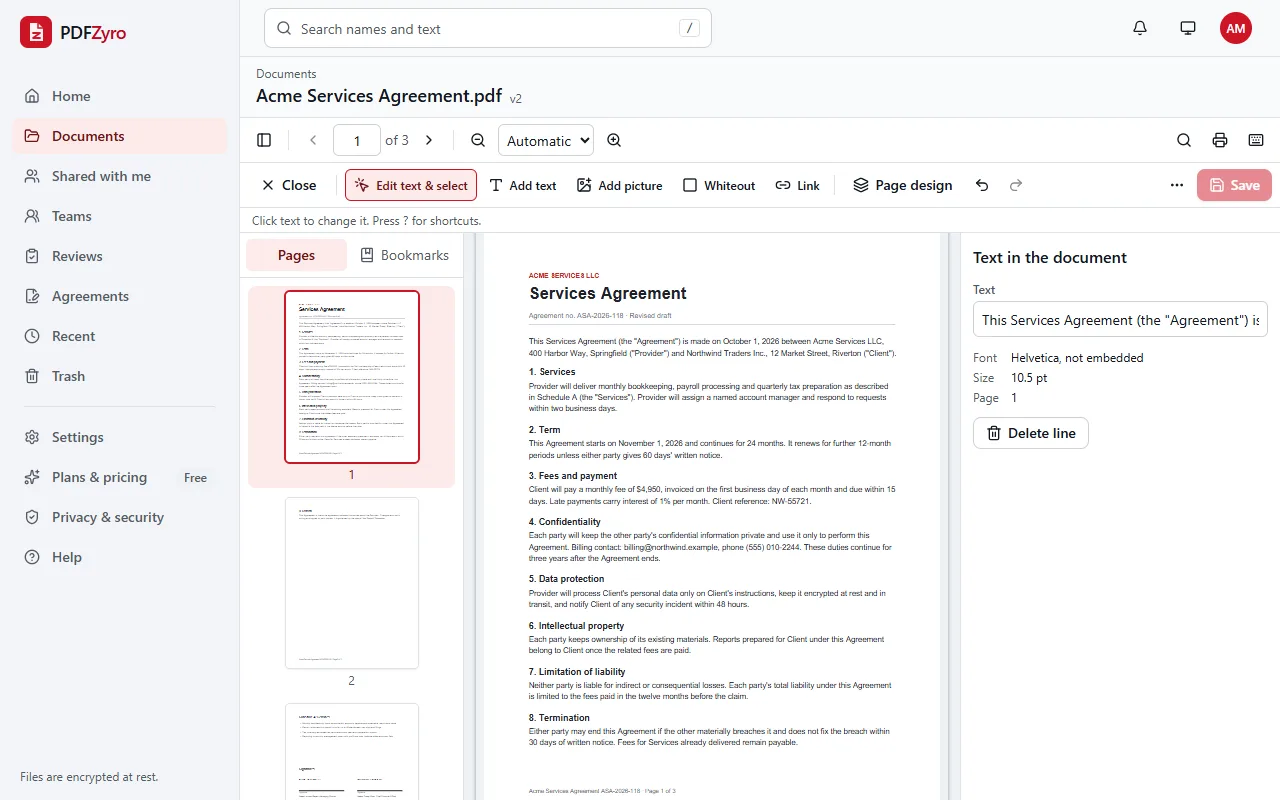
How to edit PDF text on a Mac in your browser
To change the words that are already in a PDF, you need a real PDF editor. PDFZyro runs in Safari, Chrome, Firefox and Edge on a Mac, so there's nothing to download or keep up to date.
- Open PDFZyro in your browser and create a free account.
- Click Edit PDF on the Home page and choose the PDF from your documents, or drag it from Finder onto the upload area.
- With Edit text & select chosen in the toolbar (or press V), click the line of text you want to change. Type your change and press Return, or press Esc to cancel.
- To add new text, choose Add text (T) and click where it goes. In the properties panel, choose Sans, Serif or Mono, the size, bold or italic, the alignment and the colour.
- To add a logo or a screenshot, choose Add picture (I) and pick a JPG or PNG. To remove something, choose Whiteout (W) and drag over it: text under the box is removed when you save, not just covered.
- Undo with Command-Z and redo with Command-Shift-Z. When you're done, click Save or press Command-S.
- The edited PDF is saved as a new version, and the earlier version stays in the history. Download it, and it lands in your Downloads folder like any other file.
Pages, forms and signatures on a Mac
Everything else works the same way in the browser. Open a document and use Organize pages to drag pages into a new order, rotate, delete, duplicate or insert pages. Fill & Sign fills in forms, even ones without fillable fields, and adds your signature, which you can draw with the trackpad. Merge combines several PDFs, and Compress makes a large file small enough to email.
For a long rewrite, convert the PDF with PDF to Word and open the .docx in Pages or Microsoft Word for Mac. Text in a PDF is edited one line at a time and doesn't flow onto the next line, so whole paragraphs are easier to rewrite in a word processor.
If you use PDFZyro often, keep it one click away. In Chrome or Edge, choose Install app from the account menu. In Safari on recent versions of macOS, choose File, then Add to Dock.
Is it really free?
Yes. On the Free plan, saving your changes in Edit counts as one of the daily edit, convert, compress or OCR tasks. Organizing pages, adding comments and Fill & Sign aren't counted, and nothing is ever added to your file, not even a watermark. Pro removes the daily limit if you edit PDFs all day.
Other free ways to edit a PDF on a Mac
- Adobe Acrobat Reader for Mac: free for adding comments, filling in forms and signing. Changing the text and pictures on a page needs the paid Acrobat.
- LibreOffice Draw: this free app opens a PDF as a drawing in which lines of text can be changed. It works best with simple layouts.
- Pages: it can't open PDFs. Convert the PDF to Word first, then open the .docx in Pages.
- Print, write and scan: always possible for a form, but slow, and the scan can't be searched or edited.
Questions and answers
Can I edit a PDF on a Mac for free?
Yes. Preview, which comes with every Mac, adds text boxes, highlights, signatures and pages. To change the text that's already there, use a free browser-based editor such as PDFZyro in Safari or Chrome.
How do I edit the text in a PDF on a Mac?
Preview can't change existing text. Open the PDF with Edit PDF in PDFZyro, click the line you want to change, type and press Return, then click Save. The edited PDF is saved as a new version you can download.
Why can't I edit the text in Preview?
Preview is a viewer with markup tools: it adds text boxes, shapes and notes on top of the page, but it doesn't change the page content itself. That needs a PDF editor.
Does Preview change my original PDF?
Yes. Preview saves changes into the file you opened. Duplicate the file in Finder before you start, or use File, then Revert To, to go back to an earlier version. PDFZyro saves every change as a new version and keeps the original.
Can I edit a scanned PDF on a Mac?
Yes, once its text has been recognized. Run Make searchable (OCR) on the scan in PDFZyro, then open it in Edit and change the recognized lines like any other text.
Do I need to install anything to edit PDFs on a Mac?
No. Preview is already on your Mac, and PDFZyro runs in Safari, Chrome, Firefox or Edge. There's no app to download.
Terms in this guide: Embedded fonts · PDF (Portable Document Format) · Flattening a PDF · Watermark
Related guides
- How to edit a PDFHow to edit a PDF: change existing text, add text, pictures and links, white out content, edit pages and scans, and other ways to edit, step by step.
- Best PDF editorsHow to choose the best PDF editor: what to look for, the main kinds, popular options at a glance, and which suits occasional edits, signing or legal work.
- How to sign a PDF for freeHow to sign a PDF for free: esign it online or on a Mac, insert your signature and the date, get others to sign, and what makes an electronic signature valid.
- How to convert PDF to WordHow do you convert a PDF to Word? Converting PDF to Word step by step: choose pages, get an editable DOCX, what converts well, and other ways to do it.
Related tools
Every PDF tool in one place
Free plan with no time limit and no watermarks. Pro is free for 7 days, no card needed.
Edit a PDF free