How to delete pages from a PDF
To delete pages from a PDF, open it in a tool that can organize pages, select the pages you don't want, delete them and save. You don't need the original Word file or a paid copy of Adobe Acrobat, and in PDFZyro the version with every page stays in the document's history in case you need it again.
This guide shows how to delete one page or many, when keeping a few pages is quicker than deleting the rest, what happens to bookmarks and form fields, and the other ways to remove pages on a Mac or with Acrobat.
Updated October 16, 2026 · By the PDFZyro team
How to delete pages from a PDF in PDFZyro
- Open Organize pages on the Home page and choose the PDF from your documents, or upload it. If the document is already open, click Organize pages.
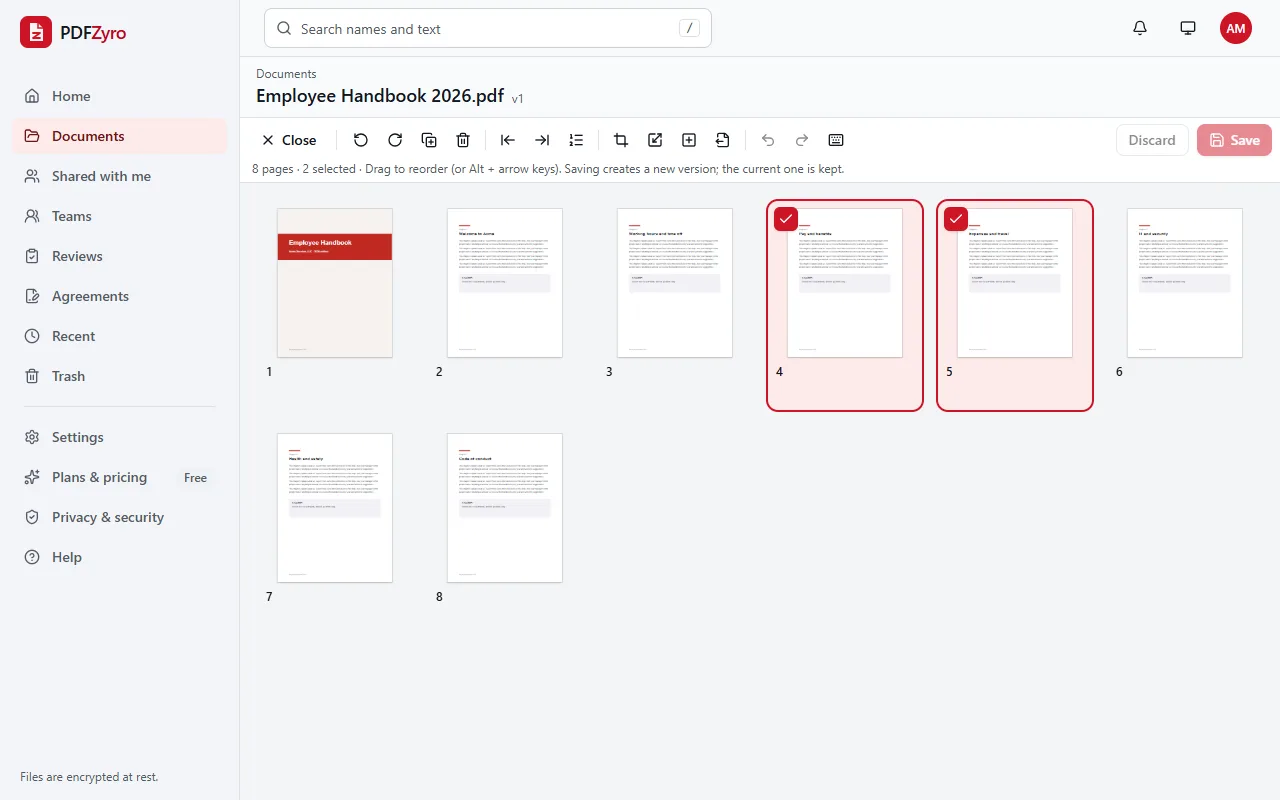
- Select the pages to remove. Click a page, Shift-click to select a run of pages, or Ctrl-click (⌘-click on a Mac) to add pages from anywhere in the document. On a phone or tablet, tap the box in the corner of each page.
- Click Delete in the toolbar, or press the Delete key. The pages disappear from the grid, and the line under the toolbar shows how many changes haven't been saved yet.
- Deleted the wrong page? Click Undo, or press Ctrl+Z. Undo and Redo work until you save.
- Click Save. The document without those pages is saved as a new version, and the earlier version, with every page, stays in the history.
Keeping a few pages is sometimes quicker
If you need only 3 pages of a 200-page PDF, selecting and deleting the other 197 is slow. Use Extract pages instead: type the pages to keep, such as 1, 45-46, and they're copied into a new document. The original stays complete, so nothing is lost.
And if you want to divide a document into several files rather than remove pages, split it by page ranges, every few pages, file size or bookmarks.
Deleting blank pages from a scan
Double-sided scanning often leaves the blank backs of single-sided pages in the PDF. Open the scan in Organize pages, where blank pages are easy to spot among the thumbnails, Ctrl-click each one and delete them all at once. While you're there, rotate any page that came out sideways and drag pages that were scanned out of order into place, then save everything as one new version.
What happens to bookmarks, form fields and file size
- Bookmarks that pointed to a deleted page are removed; bookmarks to the remaining pages keep working.
- Form fields on deleted pages are removed with them, so the form doesn't keep fields nobody can see.
- Pictures and fonts that only the deleted pages used are left out of the new version, so the file usually gets smaller.
- Page numbers printed on the pages don't change. If the document already has page numbers or Bates numbers, delete pages first and number the document last.
Removing pages you must not share
Deleting pages saves a new version, but the earlier versions in the document's history still contain them. That's what lets you get a page back, but it matters if you're removing pages because they must not be shared.
In that case, make a separate document that contains only the pages to share with Extract pages, and share that one. To remove a name, a number or a paragraph rather than whole pages, use Redact, which deletes the content under each mark and saves the result as a new document.
Other ways to delete pages from a PDF
- Preview on a Mac: show the thumbnails (View, then Thumbnails), select the pages and press the Delete key. Then choose File, then Save, or File, then Export as PDF to keep the original as it is.
- Adobe Acrobat: the paid version's Organize Pages tool deletes pages. The free Acrobat Reader can't delete pages.
- Print to PDF: print only the pages you want to keep, choosing Microsoft Print to PDF on Windows or Save as PDF on a Mac. Links, form fields and bookmarks may be lost, so check the result.
Tips for deleting PDF pages
- A PDF needs at least one page, so you can't delete every page of a document.
- A password-protected PDF can't be organized until its password is removed. If you know the password, use Remove password first.
- Delete pages before you sign. Changing a signed PDF means its digital signature no longer covers the new version.
- Discard throws away every change you haven't saved, if you'd rather start over.
Questions and answers
How do I delete a page from a PDF?
Open the PDF with Organize pages in PDFZyro, click the page, click Delete (or press the Delete key) and click Save. The document without that page is saved as a new version.
How do I delete several pages at once?
Select them all first: Shift-click to select a run of pages, or Ctrl-click (⌘-click on a Mac) to pick pages from anywhere. Then click Delete once and save.
Can I get a deleted page back?
Before you save, click Undo. After saving, open the document's version history: restore the earlier version as a new version, or open it and copy the pages you need into a new document with Extract pages.
Is deleting pages from a PDF free?
Yes. Organizing pages, including deleting them, isn't counted towards the Free plan's daily tasks, so you can remove pages as often as you need, with files up to the Free plan's size limit. No watermark is added.
Does deleting pages make a PDF smaller?
Usually. Pictures and fonts used only by the deleted pages are left out of the new version. To shrink it further, compress it.
Can I delete PDF pages on my phone?
Yes. PDFZyro works in the browser on iPhone, iPad and Android: open Organize pages, tap the box on each page to remove, tap Delete, then Save.
Related guides
- How to extract pages from a PDFHow to extract pages from a PDF into one new file: pick pages by number or by sight, in any order, from any version, and when to split or delete instead.
- How to add pages to a PDFHow to add pages to a PDF: insert blank pages or pages from another PDF, add scans and photos, merge whole files, and other ways to do it, step by step.
- How to rotate PDF pagesHow to rotate PDF pages and save them: turn one page or all of them, why a viewer's rotate button doesn't fix the file, sideways scans, and other ways.
- How to split PDF pagesHow to split PDF pages into separate files: by page ranges, every few pages, file size or bookmarks, or extract just the pages you need. Step by step.
Related tools
- Organize PDFReorder, delete, insert, rotate and resize pages.
- Extract PDF pagesCopy the pages you choose into one new PDF.
- Rotate PDFTurn sideways or upside-down pages and save them that way.
- Split PDFSplit a PDF by page ranges, every few pages, size or bookmarks.
- Compress PDFMake PDFs smaller to email and share.
Every PDF tool in one place
Free plan with no time limit and no watermarks. Pro is free for 7 days, no card needed.
Organize a PDF free